

Microsoft Word makes it easier to continue working by displaying recently opened files in the Recent list. However, sometimes you may find that recent Word documents are not showing in the list or the taskbar.
We will show you why this happens and how to restore access to your recently opened Word files.
Why Are My Recent Documents Not Showing in Word
When recent documents are not showing in Word, it usually does not mean that your files are deleted. In most cases, the issue is related to Word settings, Windows features, or temporary software problems. The common causes include:
1. Recent Document History Is Disabled in Word
Microsoft Word has a setting that controls whether recently opened files appear on the Recent list. If this feature is disabled, Word will not display any recent files.
2. Windows Recent Items Feature Is Turned Off
Windows uses the Jump Lists feature to help applications display recently opened files. If this feature is disabled in Windows Settings, Word may not show recent documents correctly.
3. Microsoft Account or OneDrive Sync Issues
If you use Microsoft 365 with a Microsoft account or store documents through OneDrive, potential synchronization problems may affect how recent files appear.
4. Office Installation or Configuration Problems
Corrupted Office files, incomplete program updates, or incorrect application settings may prevent Word from displaying recent documents.
Quick Solutions to Show Recent Word Documents
Solution 1. Populate New History
Applicable case: Microsoft Word recent documents are not updating due to a temporary loading or caching issue.
Word may temporarily fail to update the recent documents list. Opening a new document and creating a new history entry may help refresh the list.
Follow these steps:
Step 1. Close Microsoft Word completely.
Step 2. Reopen Word and create a new blank document. Type a few words and save the document.
Step 3. Close the document, then open Word again and check if the recent documents appear.
Solution 2. Enable Recent Documents in Word Settings
Applicable case: Word does not show any recent documents because the “Show this number of Recent Documents” option is disabled.
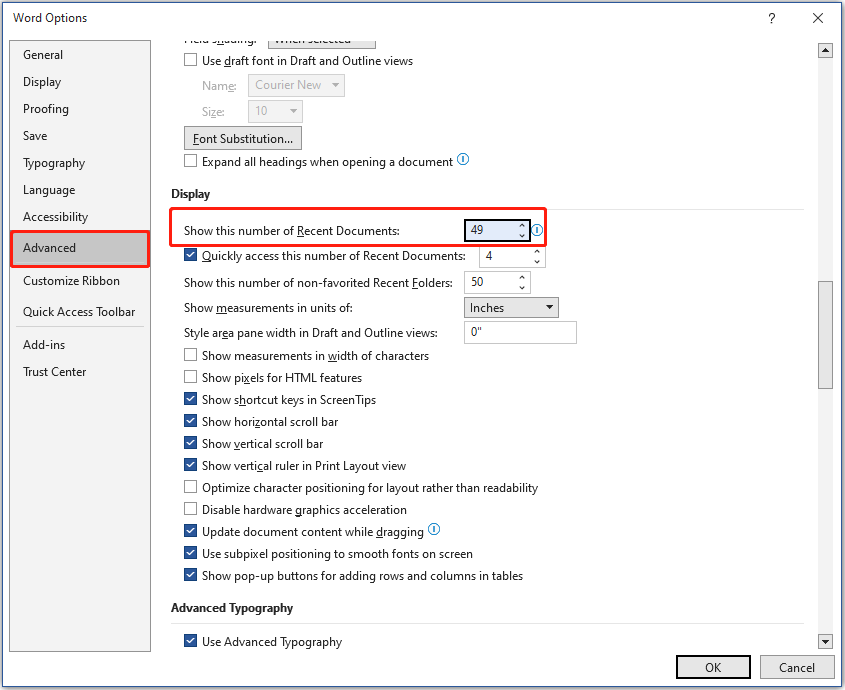
Microsoft Word has a built-in option that controls how many recently opened files are displayed, called Show this number of Recent Documents. If this setting is disabled or set incorrectly, recent documents may not appear.
Follow the steps below to enable this feature:
Step 1. In Word, click File > Options > Advanced.
Step 2. Scroll down to the Display section, find Show this number of Recent Documents, and make sure the number is greater than 0.
Step 3. Save the change and check if recent files are showing up.
If the option is already set to a large number, such as 50, try changing it to another value, such as 40, and then restart Word. In some cases, changing the number forces Word to refresh the recent document history and fixes the issue.
Solution 3. Check Windows Recent Items Settings
Applicable case: Word recent files are not showing in the taskbar because Windows has disabled recent item tracking or Jump Lists.
Windows also controls whether applications can display recently opened files through Jump Lists. If this feature is disabled, Microsoft Word may not be able to show recent documents in the taskbar.
To enable Windows recent items:
Step 1. Open Settings and go to Personalization > Start.
Step 2. Turn on Show recently opened items in Jump Lists on Start or the taskbar and in File Explorer Quick Access.
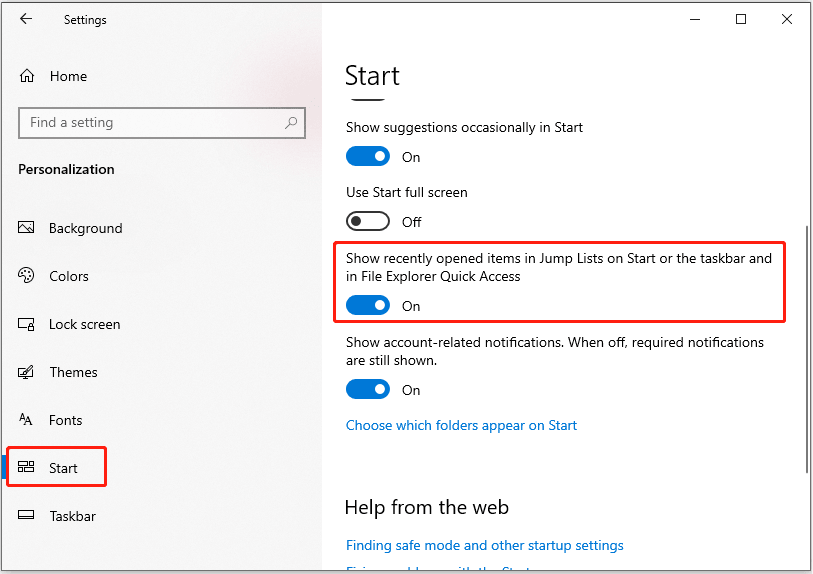
If the setting is already enabled, try turning it off, restarting the computer, and turning it back on.
Solution 4. Sign Out and Sign Back into Microsoft Account
Applicable case: Word documents disappear after Microsoft account problems or Microsoft 365 connection errors.
When Word is connected to a Microsoft account, problems with account status or cloud synchronization may affect recent document information.
To fix the problem, try signing out and signing back in to rebuild the connection.
How to Recover Lost Word Documents (if Files Are Missing)
Method 1. Recover Word Documents with Data Recovery Software
When a Word document is missing from your computer, the file content may remain on the hard disk until new data overwrites it. Therefore, you can use free data recovery software to scan the disk and recover the document.
MiniTool Power Data Recovery is designed to recover deleted and lost files from hard drives, SSDs, USB drives, and other storage devices. It supports the recovery of Word documents, Excel spreadsheets, PowerPoint files, and other types of data.
The free edition allows you to scan your device and recover up to 1 GB of data for free, so you can check whether your lost Word files can be found before upgrading.
MiniTool Power Data Recovery FreeClick to Download100%Clean & Safe
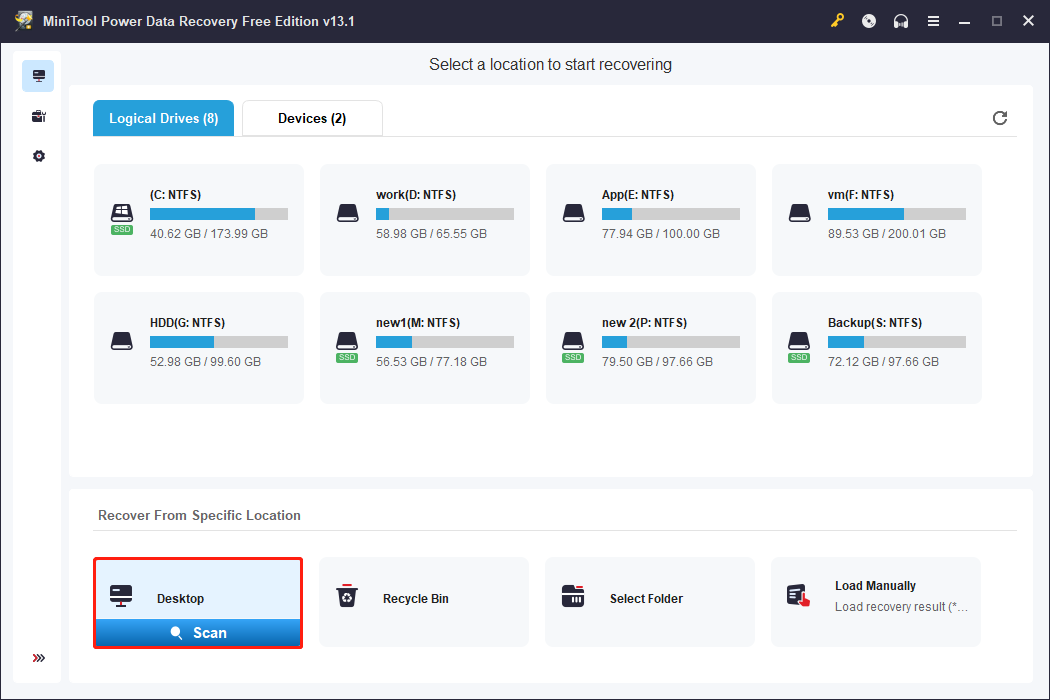
Step 1. Scan the drive or location
Launch the software to enter its main interface. Select the disk partition or specific location where your Word documents were stored and click Scan.
Step 2. Find required Word documents
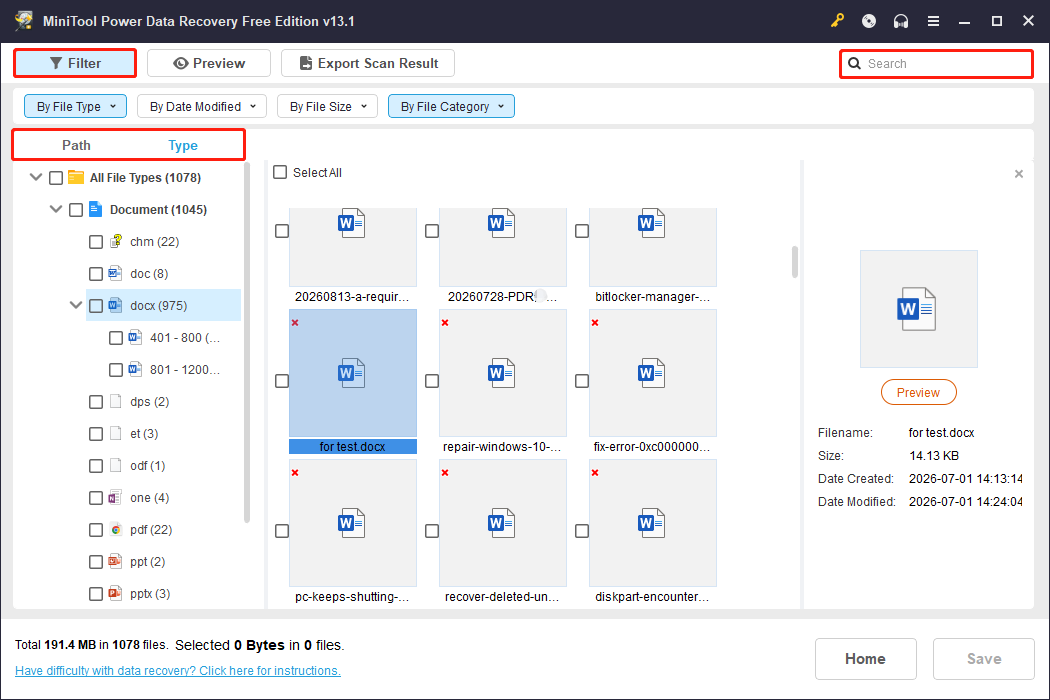
After scanning, use the available tools to find the Word documents you want to recover:
- Browse files by Path to check them according to their original folder locations.
- Switch to Type to quickly locate Word files.
- Use Filter to narrow down results by file type, size, modification date, or category.
- Use Search to search for a specific file by using its file name.
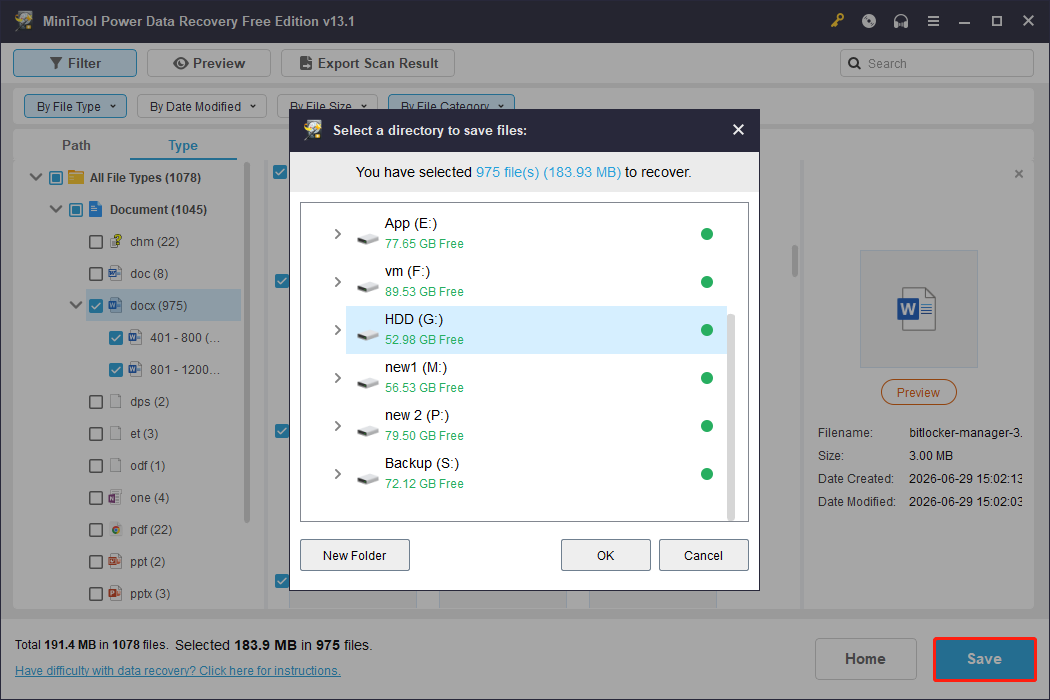
Step 3. Save the desired Word files
Select the required Word documents and click Save. In the new window, choose a new location as the recovery destination. Do not store recovered files to their original location to avoid overwriting other lost data.
Method 2. Restore Word Documents from Backups
If Word documents are missing but you have a backup available, restoring from the backup is the safest recovery method.
For example, if you enabled File History and backed up your Word documents, you can now restore them from previous copies.
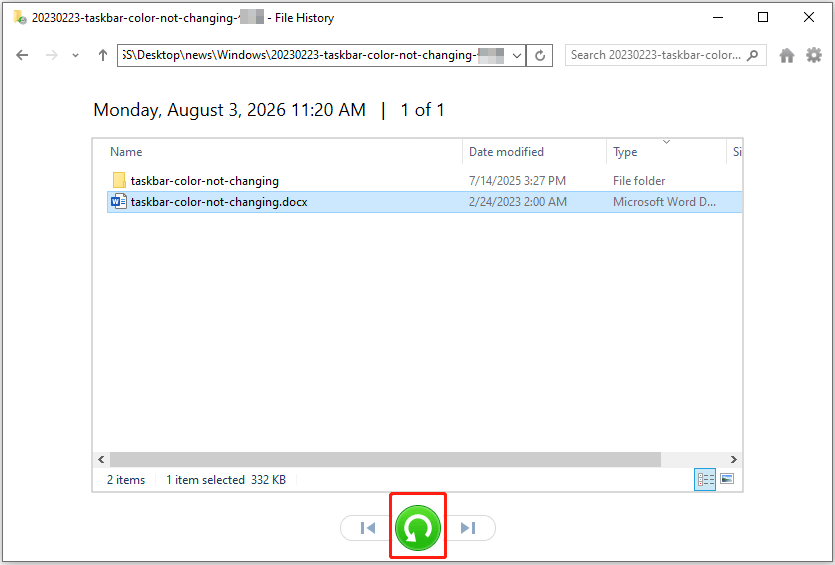
Step 1. Open the Control Panel and navigate to System and Security > File History > Restore personal files.
Step 2. Browse previous versions of your folders and files, select the missing Word documents, and click the green Restore button.
You can also restore files from other available backups, such as external hard drive backups, OneDrive backups, or third-party data backup software.
Method 3. Recover Unsaved Word Documents
Unlike deleted Word files, unsaved documents are not removed from the storage device. Instead, Word may have created temporary recovery copies through its AutoRecover feature.
To recover unsaved Word files, use the built-in recovery option:
Step 1. Open Microsoft Word, click File on the top toolbar, and select Info from the left menu.
Step 2. Select Manage Document > Recover Unsaved Documents. Word will open the AutoRecover folder, which is usually located at:
C:\Users\UserName\AppData\Roaming\Microsoft\Word
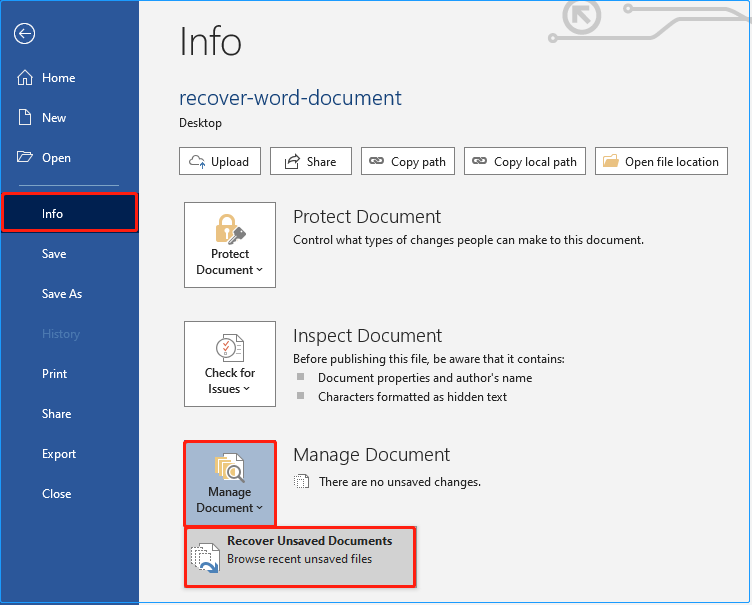
Step 3. Check the available files in this folder and look for .asd files that may contain your unsaved work. If you find the required file, open it in Word and save it to a secure location.
Advanced Solutions to Fix Word Recent Documents Not Showing
Solution 1. Modify Registry Settings
Applicable case: The NoRecentDocsHistory registry setting is enabled and prevents Windows from displaying recently opened documents.
Windows Registry includes policies that control recent document history. If the NoRecentDocsHistory value exists and is enabled, Microsoft Word or Excel may stop displaying recent files.
Back up the registry, and then follow the steps below to disable the NoRecentDocsHistory value:
Step 1. Press Windows + R to open Run, type regedit in the box, and press Enter to open Registry Editor.
Step 2. In the address bar at the top, navigate to the following location:
Computer\HKEY_CURRENT_USER\Software\Microsoft\Windows\CurrentVersion\Policies
Step 3. In the right panel, check whether there is a value named NoRecentDocsHistory. If you find it, right-click it and select Delete.
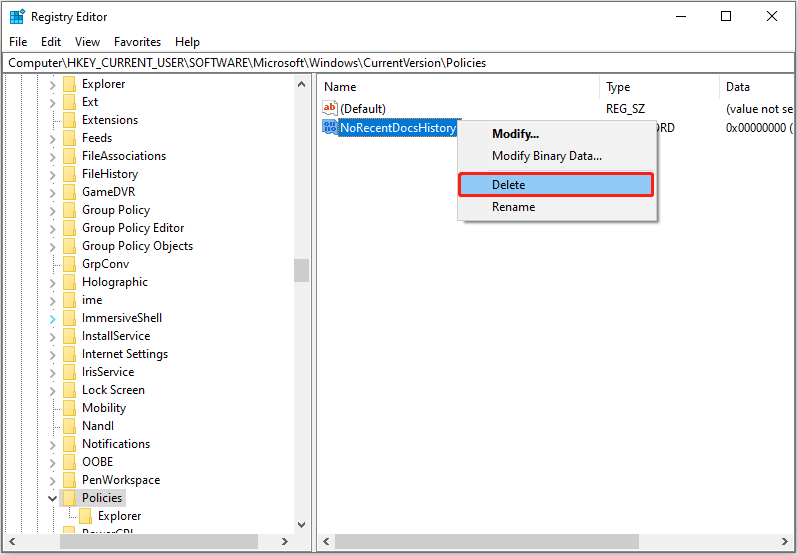
Step 4. Restart your computer and open Microsoft Word again to check whether recent documents appear.
Solution 2. Unlink PC from OneDrive
Applicable case: Word recent documents are missing due to OneDrive synchronization problems or conflicts between local and cloud files.
Microsoft Word is often connected to OneDrive, especially when using Microsoft 365. If OneDrive is not syncing correctly, Word may fail to display recent documents stored in cloud locations.
In this case, try unlinking and reconnecting your PC:
Step 1. Click the OneDrive icon in the taskbar and choose Help & Settings > Settings.
Step 2. Go to the Account tab and select Unlink this PC.
Step 3. Follow the instructions to sign in again and reconnect OneDrive. After that, open Word and check whether the problem is resolved.

Solution 3. Repair Microsoft Office
Applicable case: Documents are not showing because Office components are damaged.
Microsoft Office includes built-in repair tools that can fix common issues without reinstalling the applications. If recent documents are missing not only in Word but also in other Office apps like Excel, repairing Office may help.
Step 1. Open Settings and click Apps.
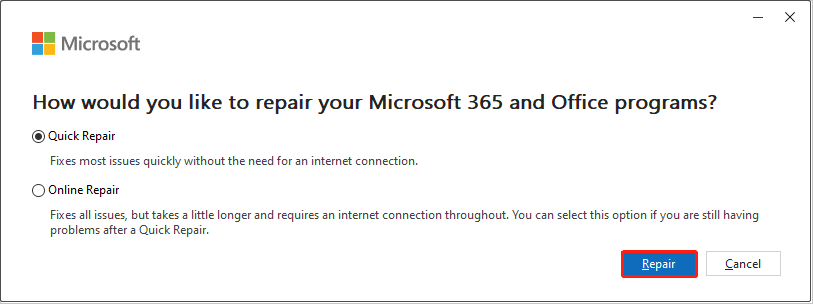
Step 2. Find Microsoft Office from the app list and click Modify.
Step 3. Choose Quick Repair first and click Repair. After that, check if the problem is solved. If the issue continues, try Online Repair.
Quick Repair is faster and does not require an internet connection, while Online Repair performs a more complete repair.
Solution 4. Reinstall Microsoft Office
Applicable case: Word recent documents are still missing after repairing Office.
Reinstalling Microsoft Office can reset Word settings and replace damaged installation files that may affect recent document functionality.
Before reinstalling Office, make sure your important documents are saved and that you have access to your Microsoft account or product license.
Step 1. In Settings, click Apps.
Step 2. Find Microsoft Office or Microsoft 365 and click Uninstall.
Step 3. Download and reinstall Office from your Microsoft account.
Conclusion
When Word recent documents are not showing, try enabling recent files in Word settings, refreshing Windows Jump Lists, or signing out of and back into your Microsoft account.
If the problem is caused by deeper system or Office issues, advanced methods such as modifying registry settings, repairing Microsoft Office, or reinstalling Office can help resolve it.
If the documents themselves are missing, use data recovery software to recover them or restore them from backup files.
Should you encounter any issues while using MiniTool products, you can contact the tech support team at [email protected].
Word Recent Files Disappeared FAQ
You can also right-click the Word icon on the taskbar to view recently opened documents in the Jump Lists.
If recent files are not appearing, go to File > Options > Advanced > Display and check the Show this number of Recent Workbooks setting. Make sure the value is greater than 0.
About The Author

Position: Columnist
Shirley holds a bachelor’s degree in English and has been an editor at the MiniTool Team for many years. She specializes in IT-related content, with a focus on data recovery, file backup, disk management, and other technical topics. She is committed to delivering clear, accurate, and practical solutions to help users resolve common computer issues.
User Comments :