

You can recover ZIP files on Windows by checking the Recycle Bin, restoring backups, or using data recovery software. If a ZIP file is corrupted and cannot be opened, you can repair it with 7-Zip, WinRAR, or ZIP repair tools.
ZIP files, as one of the most common compression formats, are widely used for data storage, transmission, and backup. However, corruption or loss of ZIP files is not uncommon.
Quick Answer: Can You Recover a Deleted ZIP File?
Yes, you can recover a deleted ZIP file in many cases, especially if the deleted data has not been overwritten by new files. The recovery method depends on how the ZIP file was lost.
This table shows different ZIP file loss situations and the corresponding recovery methods.
| ZIP File Loss Situation | Best Recovery Method |
| ZIP file was recently deleted | Restore it from the Windows Recycle Bin |
| ZIP file was permanently deleted (Shift + Delete) | Use data recovery software to scan and recover the file |
| ZIP file was lost after formatting a drive | Use professional data recovery software |
| ZIP file exists but cannot be opened | Repair the ZIP file with WinRAR or extract it using 7-Zip |
| ZIP file download was interrupted | Download the ZIP file again from the original source |
| ZIP file was overwritten by new data | Recovery may be difficult or impossible |
Reasons for ZIP File Loss and Corruption
Here are scenarios where ZIP files are lost or corrupted:
- Storage media failure: Physical damage or bad sectors on hard drives, SSDs, or USB flash drives can lead to ZIP file corruption or inaccessibility.
- Network transmission errors: Download/upload interruptions can result in incomplete files that cannot be decompressed.
- Software/system errors: Incompatible compression tool versions, system crashes, or power outages can cause file corruption.
- Human errors: A file with the same name is accidentally deleted or overwritten, or the disk is mistakenly formatted.
- External risks: Virus infection or prolonged storage aging can lead to compressed file corruption.
When important data is trapped in an unextractable or deleted ZIP file, mastering effective recovery methods becomes crucial.
After knowing about the causes of ZIP file loss and corruption, the next step is to recover or repair them.
Part 1. How to Recover Deleted ZIP Files
Windows offers several methods to recover ZIP files, helping you retrieve important data. This section will guide you step-by-step on how to perform ZIP file recovery.
Initial Check: Show Hidden Files
Before restoring ZIP files, try showing hidden files. Some compressed files may be marked as hidden files on your system or stored in hidden directories.
If hidden files are not displayed, you won’t see these hidden ZIP files in normal view, and you might assume they are missing.
Showing hidden files ensures that all possible copies of the files are displayed.
Step 1: Press Win + E to open File Explorer.
Step 2: Switch to the View tab in the top toolbar.
Step 3: Check the box for the Hidden items option.

This will make all hidden files and folders visible. Check if your missing ZIP files are shown. If you still cannot see your files, try the following method.
Method 1: Restore from the Recycle Bin
When you delete files on Windows, the system usually doesn’t immediately erase them; instead, it moves them to the Recycle Bin for temporary storage.
Therefore, when ZIP files are deleted or lost, check the Recycle Bin first. This allows you to easily restore the original file without any additional tools. It’s the most direct and fastest method.
1. Files are not deleted using Shift + Delete or other permanent deletion methods.
2. The Recycle Bin has not been emptied.
If all conditions are met, then follow the steps to restore the ZIP file from the Recycle Bin.
Step 1: Double-click the Recycle Bin icon to open the utility.
Step 2: Scroll down the list to find the target ZIP file.
Step 3: Select the file, right-click it, and click Restore.
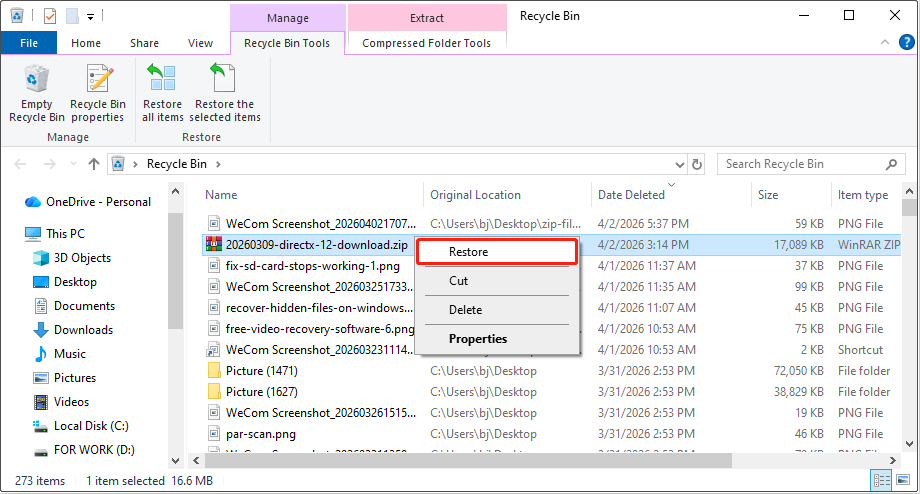
The ZIP file will be restored to its original location. Navigate to the destination to view your file.
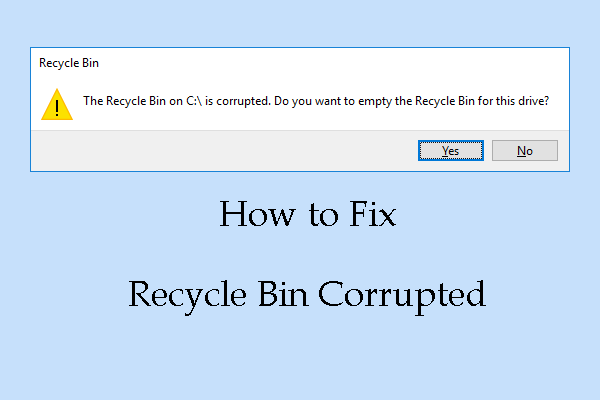
Method 2: Recover Using MiniTool Power Data Recovery
If you don’t find the ZIP files in the Recycle Bin, try MiniTool Power Data Recovery to restore them.
It can handle data loss due to accidental deletion, partition loss, or formatting, making it suitable for common ZIP file loss scenarios.
This tool can recover not only compressed files (ZIP, RAR, and so on), but also various other file types (documents, pictures, videos, and more).
This free file recovery software gives you a 1 GB free recovery quota. Click the following button to download and install it to recover deleted or lost ZIP files.
MiniTool Power Data Recovery FreeClick to Download100%Clean & Safe
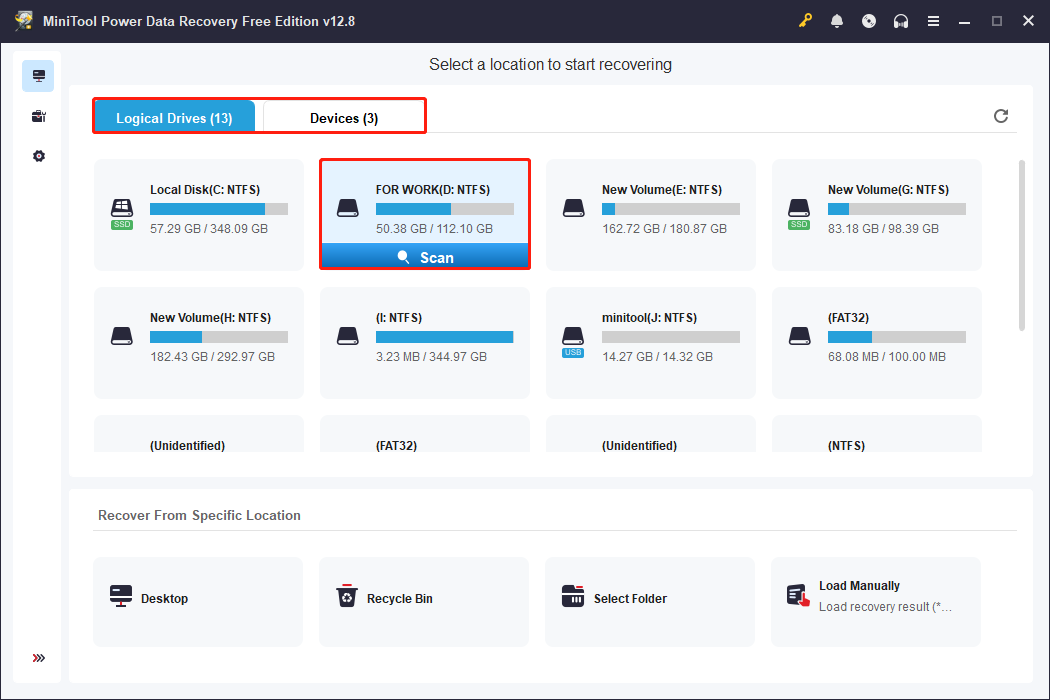
Step 1: Scan the location where ZIP files are stored
Open MiniTool Power Data Recovery. In the main interface, find the scan location:
- Logical Drives: It lists all partitions, including lost partitions, existing partitions, and unallocated space.
- Devices: It displays all the disks that are connected to your computer.
Now, select the partition or disk and click Scan to start the scanning process.
Step 2: Find the target ZIP files
The scan process may take some time. Wait patiently for it to finish for a more complete recovery result. When it ends, use the following features to locate the ZIP files.
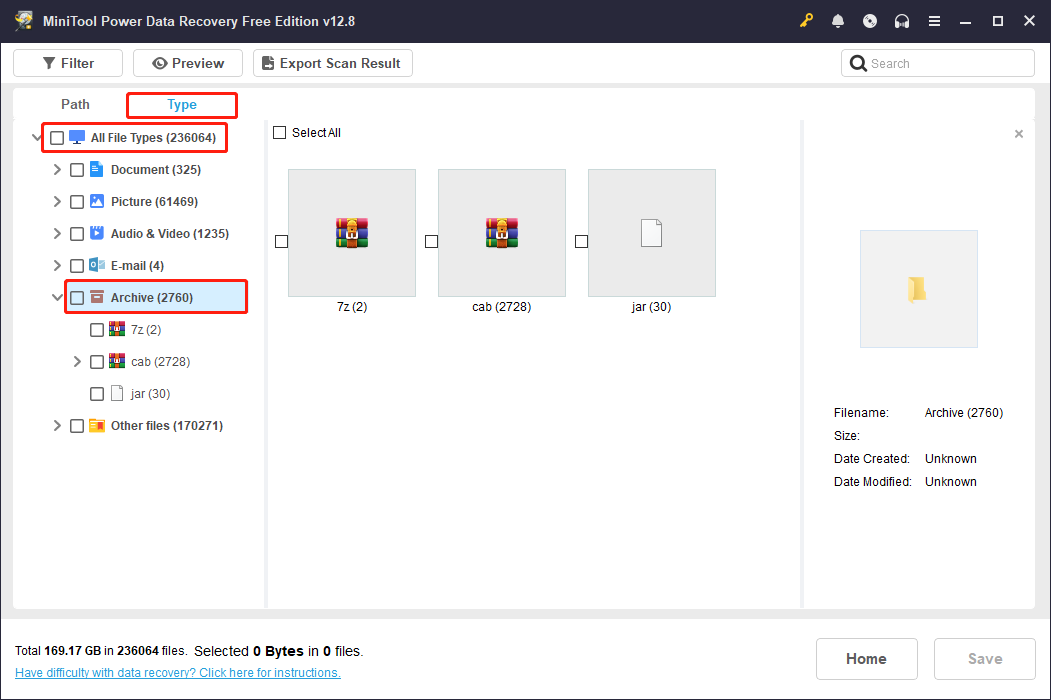
The Type feature categorizes scan results based on file type, such as documents, pictures, videos, and compressed files.
Switch to the Type tab, expand All File Types > Archive. All compressed file formats will be displayed.
Step 3: Recover the required files to a safe location
Select the ZIP files you want to recover and click the Save button to enter the path interface. Choose a storage location different from the original disk to avoid data overwriting, and then click OK to start recovery.
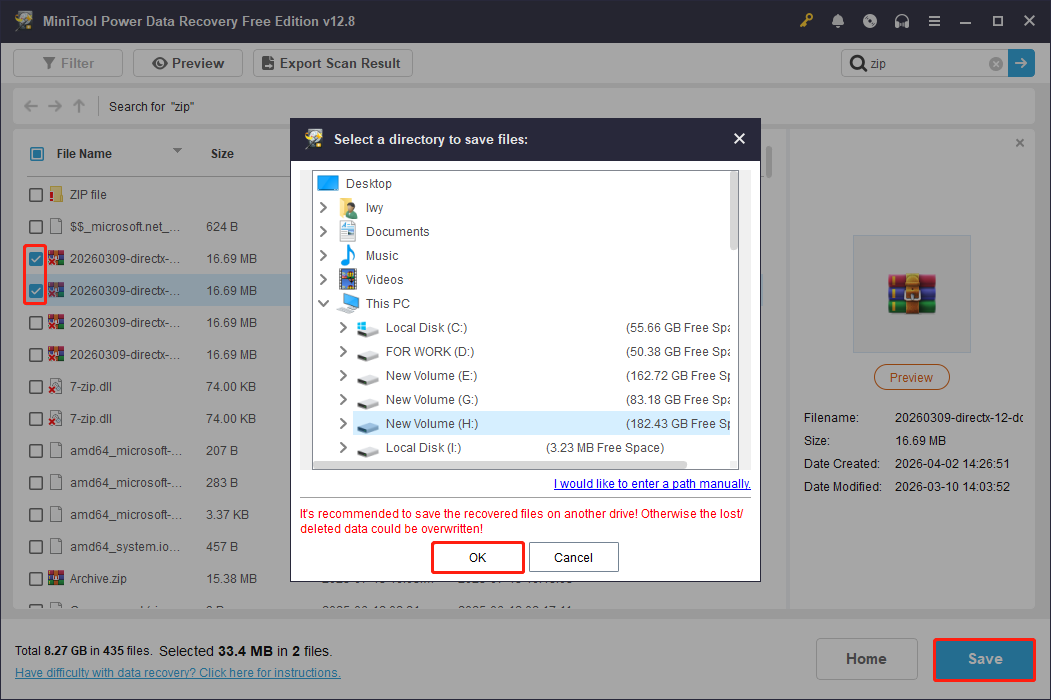
After the recovery is complete, click the View Recovered button to check if the ZIP files can be opened or extracted normally.
Method 3: Retrieve with File History
File History is a built-in backup feature that automatically saves historical versions of files in library folders.
If you have enabled the File History feature and meet the following two conditions, you can find and restore previously saved copies of the deleted ZIP files.
- The folder containing the ZIP file is included in the backup scope.
- The system has run at least one backup task to save historical versions of the file.
Step 1: Type Control Panel in the Windows search bar and press Enter.
Step 2: Switch to Large icon view, select File History, and click Restore personal files.
Step 3: View the backups from different dates and select the version you want to restore.
Step 4: Right-click the green button and choose Restore to.
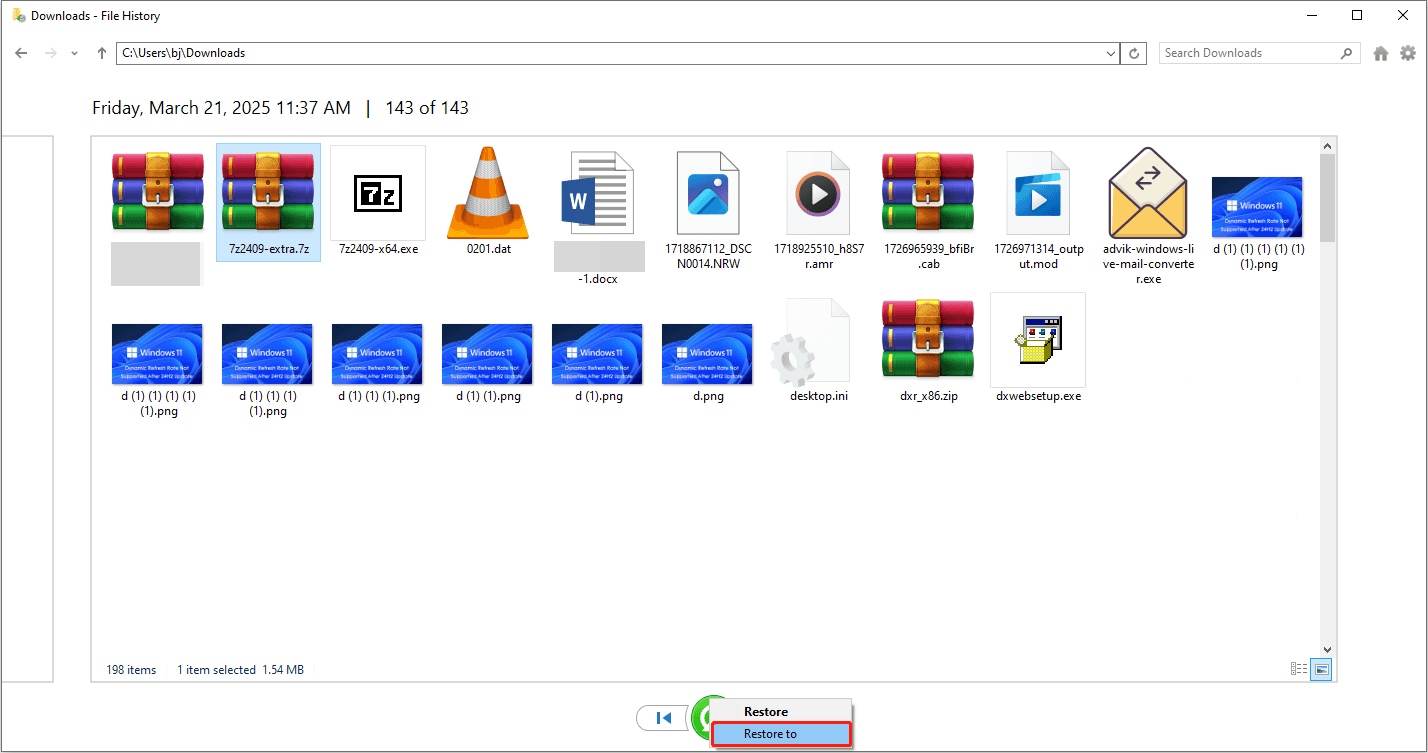
Step 5: Choose a path to store the file, and click Select Folder.
After restoration, open the location and check the recovered file.
Part 2. How to Repair Corrupted ZIP Files
Corrupted ZIP files that cannot be extracted are a common problem, especially when downloads are interrupted or storage media fail.
Fortunately, Windows provides several tools to repair these compressed files. This section will explain how to repair corrupted ZIP files on Windows.
Method 1: Utilize 7-Zip to Check for Errors
7-Zip is a free and open-source compression tool. You can try using it to decompress your corrupted ZIP file.
Its algorithmic implementation sometimes allows skipping corrupted parts and continuing to extract the remaining data. Therefore, it can sometimes extract more usable files than other file archivers.
In other words, even if the archive is partially damaged, 7-Zip may help you recover more content. Here is how to unzip your damaged file with this tool.
Step 1: Download 7-Zip on your computer, and then launch it.
Step 2: Select the target corrupted ZIP file and click the Extract button at the top.
Step 3: In the new window, click the three-dot icon to choose a path to store the extracted files.
Step 4: Finally, click OK to start the extraction process.
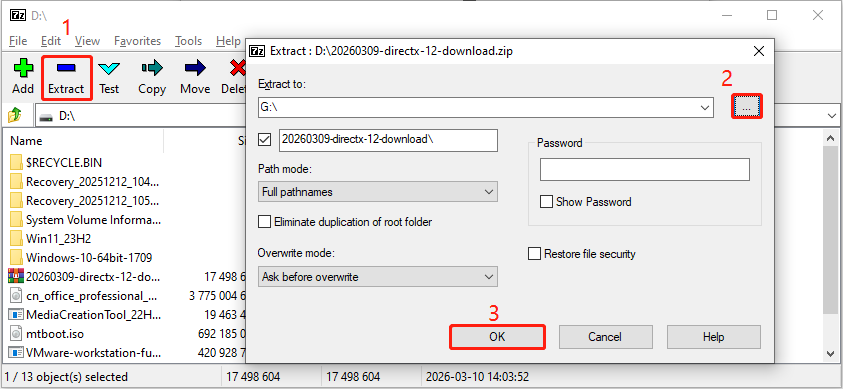
Wait patiently for it to complete. When it ends, verify whether the repaired files can be opened and used as expected.
However, this method is only effective for minor corruption. If the corruption is more severe, consider using other tools for further repair.
Method 2: Use WinRAR Repair Tool
WinRAR has a built-in, dedicated Repair function that is easy to use. It can analyze the header and data blocks of compressed archives, attempt to reconstruct the damaged structure, and generate a new, usable file.
This tool is usually effective at repairing data for minor damage caused by download interruptions, faulty storage media, or system crashes.
Step 1: Download WinRAR on your computer, and then launch it.
Step 2: Select the target ZIP file and click the Test option.
When there are errors, select the file and click the Repair option. In the pop-up window, click Browse to choose a safe path and click Select Folder to confirm. Then, click OK to start.
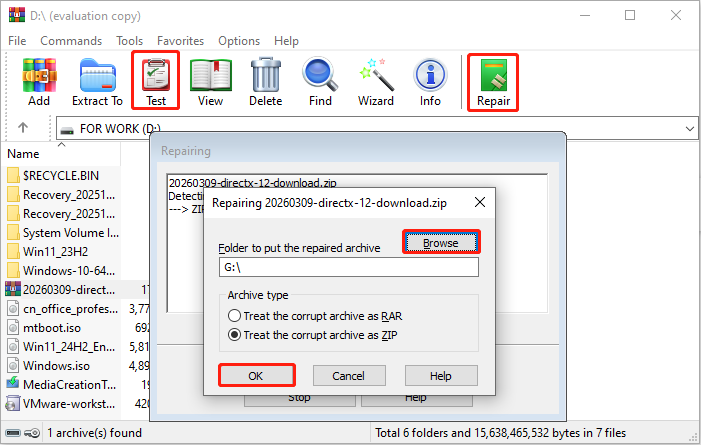
WinRAR will automatically attempt to repair the archive structure and generate a new file.
When the repair is done, open the newly generated ZIP file and try to extract its contents.
If none of these methods work, there are several online tools worth trying.
Method 3: Try Online ZIP Repair Tools
Using professional online ZIP file repair tools to repair ZIP file online is also a feasible method. Upload the corrupted archive, and the tool will automatically attempt to recover it.
The process is simple and requires no additional software installation. However, the repair success depends on the extent of file corruption and the platform’s capabilities.

How to Prevent ZIP File Loss and Corruption
Taking preventative measures to avoid ZIP file corruption and loss is crucial. This section provides practical methods for protecting ZIP files in a Windows environment.
- Ensure a stable storage environment: Avoid frequent writing of ZIP files to unstable or damaged hard drives, USB flash drives, or SD cards.
- Ensure secure transfer: Maintain a stable network connection when downloading or transferring ZIP files to avoid interruptions or incomplete downloads.
- Back up files regularly: Back up important ZIP files to an external hard drive or the cloud to prevent single points of failure.
- Avoid forced shutdowns: Do not suddenly shut down your computer or unplug storage devices during compression or decompression.
- Use reliable tools: Choose mature compression/decompression software to reduce damage caused by erroneous tools.
- Keep proper naming and paths: Avoid using excessively long filenames and paths containing special characters to reduce compatibility issues.
In a Word
ZIP recovery depends on whether the file was deleted or corrupted. Deleted ZIP files can usually be recovered with backups or recovery software, while damaged archives require repair tools.
Creating regular backups is the best method to avoid permanent ZIP file loss.
If you encounter any issues related to MiniTool products, contact us at [email protected] for assistance.
About The Author

Position: Columnist
Shirley holds a bachelor’s degree in English and has been an editor at the MiniTool Team for many years. She specializes in IT-related content, with a focus on data recovery, file backup, disk management, and other technical topics. She is committed to delivering clear, accurate, and practical solutions to help users resolve common computer issues.
User Comments :