

Losing photos due to accidental deletion, disk formatting, corrupted storage devices, or other unexpected issues can be frustrating.
Photo recovery software can scan storage devices and help recover deleted or lost images when they have not been overwritten by new data.
In this guide, we tested and compared seven popular photo recovery tools for Windows based on their recovery capabilities, supported devices, ease of use, and limitations to help you find the right option for your needs.
Photo Recovery Software Quick Comparison Table
The following table provides a quick comparison of these photo recovery tools to help you quickly find the most suitable option for your situation.
| Software | Best For | Photo Preview | Free Recovery |
| MiniTool Power Data Recovery | Best overall | Preview with watermark | 1 GB |
| Stellar Photo Recovery | Cameras photo recovery | Supported | Up to 10 photos |
| MiniTool Photo Recovery | Dedicated photo and video recovery | Supported | Up to 200 MB |
| EaseUS Data Recovery Wizard | Beginners | Preview with watermark | 500 MB (up to 2 GB with sharing on Facebook and X) |
| Recuva | Basic file recovery | Supported | Unlimited |
| Wondershare Recoverit | Advanced recovery | Preview with watermark | Up to 500 MB |
| Windows File Recovery | Advanced users | Not supported | Unlimited |
1. MiniTool Power Data Recovery: The Best Overall Photo Recovery Software
MiniTool Power Data Recovery is a Windows data recovery tool designed to recover deleted, lost, or formatted files from a wide range of local storage devices. It supports internal hard drives as well as USB drives, memory cards, and optical discs such as CDs and DVDs.
It can recover files lost due to accidental deletion, hard drive corruption, partition loss, or disk formatting. For photo recovery, it supports common image formats, including JPG, PNG, PSD, GIF, CRW, ARW, DXF, and more.
MiniTool Power Data Recovery FreeClick to Download100%Clean & Safe
Our Test: Recover Deleted Photos from My HDD
To test its photo recovery capabilities, we deleted 10 test images from an HDD partition and then used MiniTool Power Data Recovery to scan the drive.
On the main interface of the recovery tool, we selected the D: drive where the deleted photos were stored and clicked Scan.
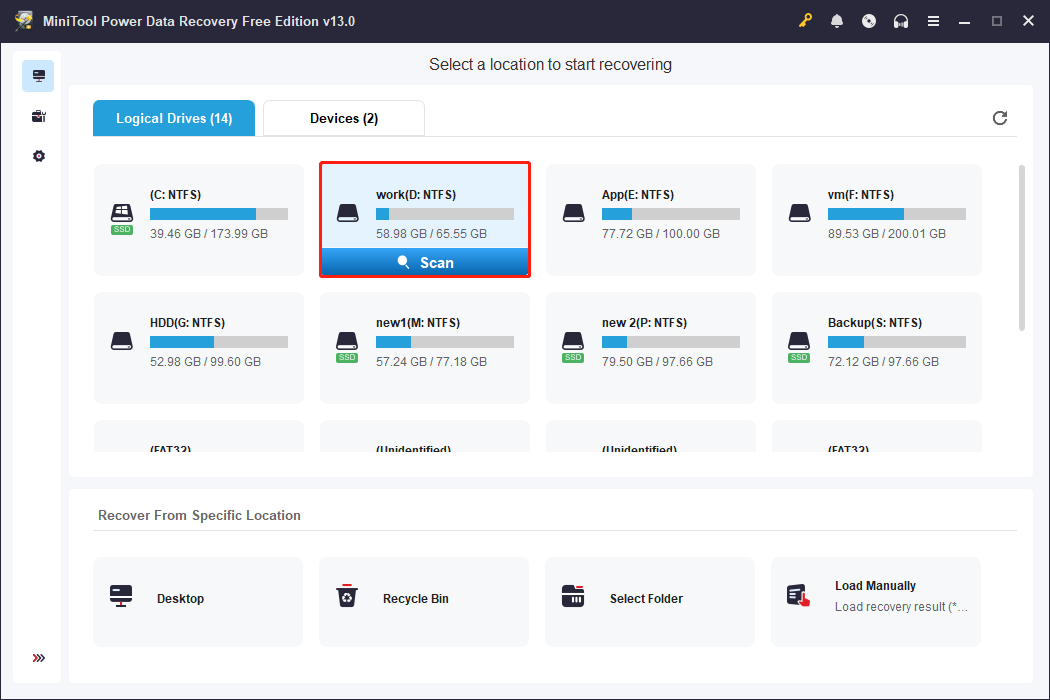
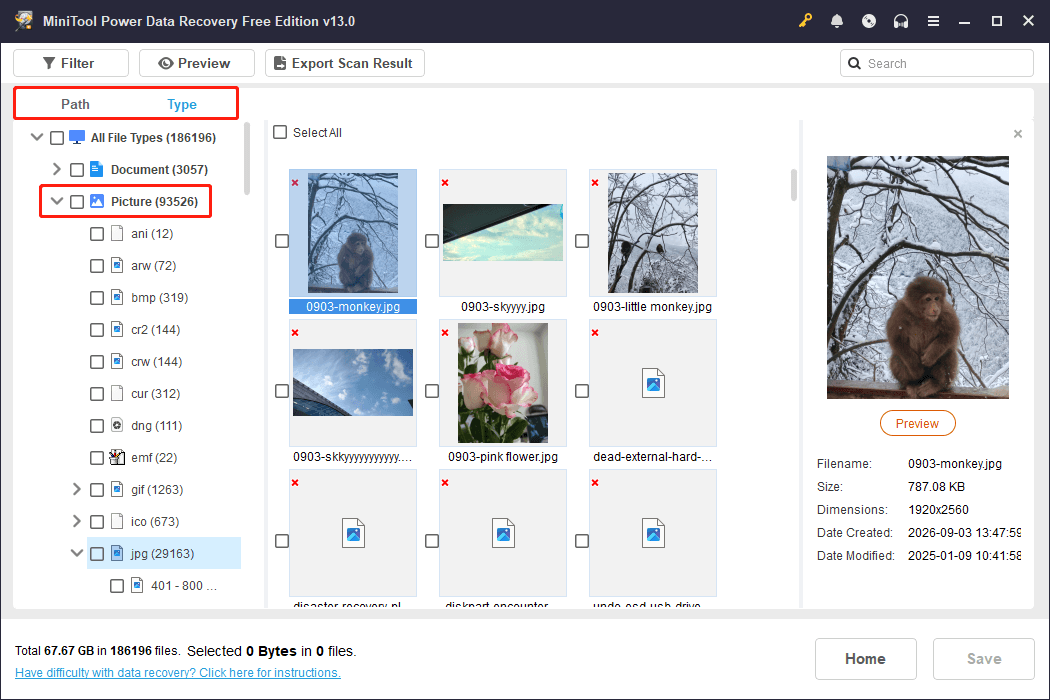
The entire scanning process took about 12 minutes. After the scan was complete, the files were displayed according to their original folder structure under Path. To locate the lost photos quickly, we switched to Type > Picture, which filtered the results by image formats.
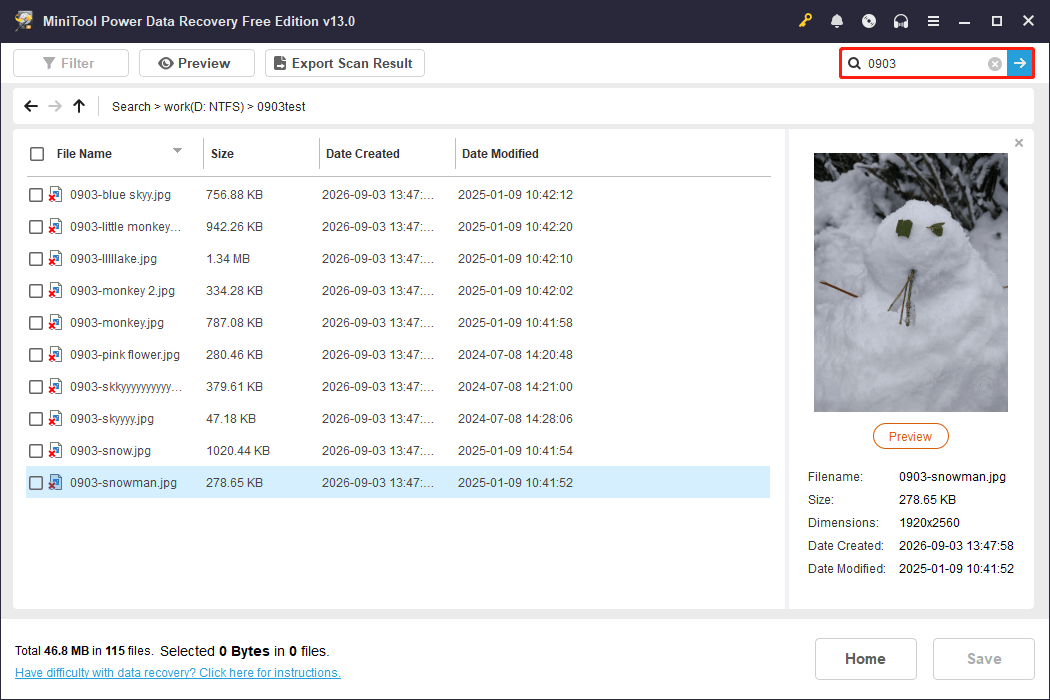
We also used the Search feature to look for the test files by entering “0903”, a keyword included in their file names.
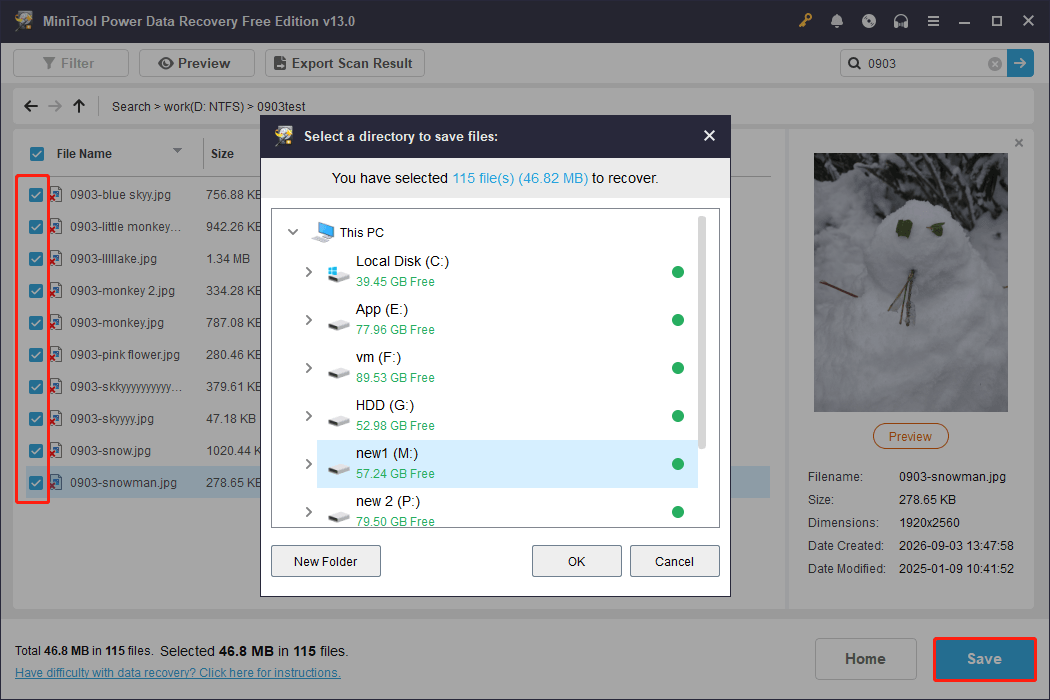
When we tried to preview the photos, an overlay appeared in the preview window. However, the thumbnail previews were clear and unobstructed, which was sufficient to verify that the photos were the ones we wanted to recover.
We selected all the 10 photos and clicked Save to recover them. Do not save the recovered photos to their original location in case of data overwriting.
MiniTool Power Data Recovery Pros and Cons
| Pros | Strong data recovery capability in our test Supports a wide range of storage devices, including CDs and DVDs Allows you to scan the Desktop, Recycle Bin, or specific folders individually Allows you to browse files by data type Up to 1 GB of free recovery |
| Cons | Full-size photo preview has an overlay (thumbnail previews are unobstructed) Longer scan times on large-capacity drives |
2. Stellar Photo Recovery: Ideal for Camera and Memory Card Recovery
Stellar Photo Recovery is a dedicated recovery tool for photos, videos, and music files, especially from digital cameras and memory cards.
It supports a wide range of camera RAW formats from brands such as Canon, Nikon, Sony, Kodak, and Panasonic. This makes it suitable for photographers who need to recover original camera files.
The software also features a clean and intuitive interface, making it easy to select file types, choose scan options, and complete the recovery process.
Our Test: Recover Deleted Photos from a Memory Card
To test its camera recovery capabilities, we deleted 10 test photos from a memory card and then used Stellar Photo Recovery to scan the card.
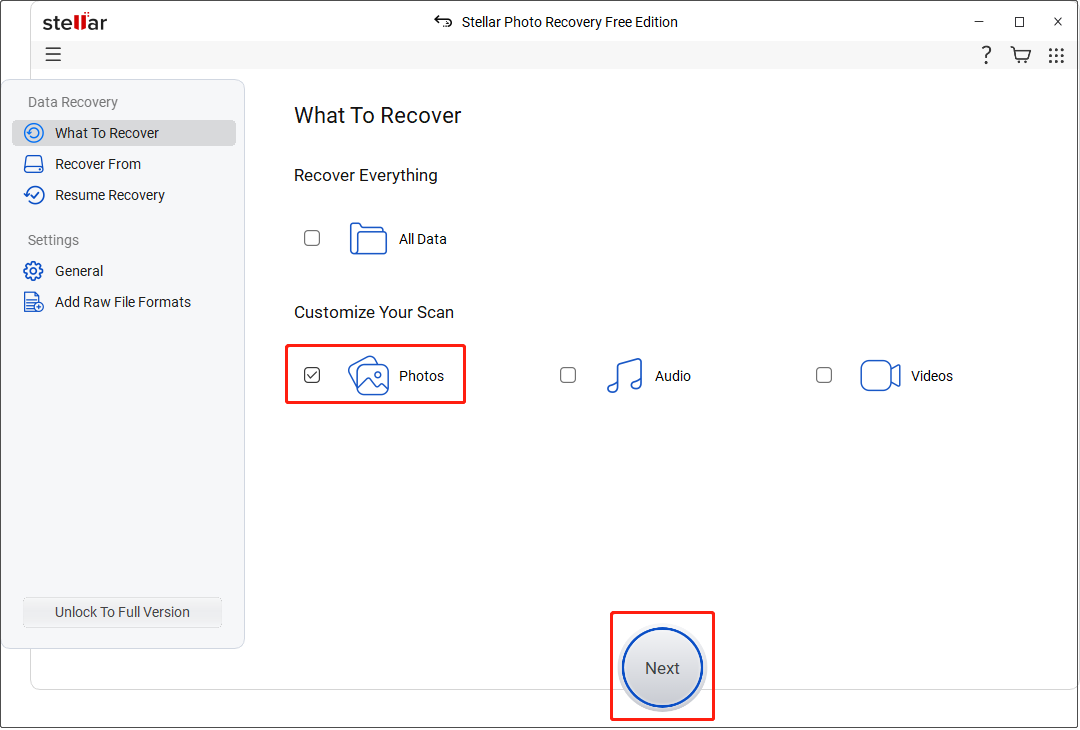
First, we ran the software, selected Photos as the file type to scan, and clicked Next to continue.
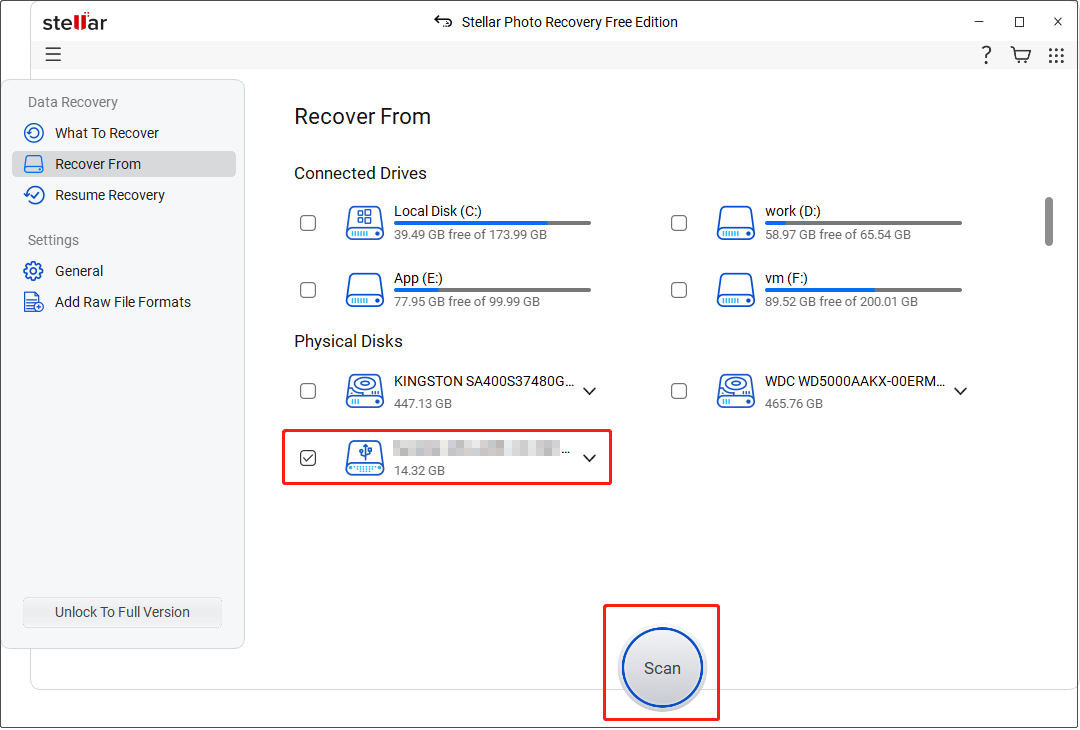
We then selected the memory card as the scan location and clicked Scan.
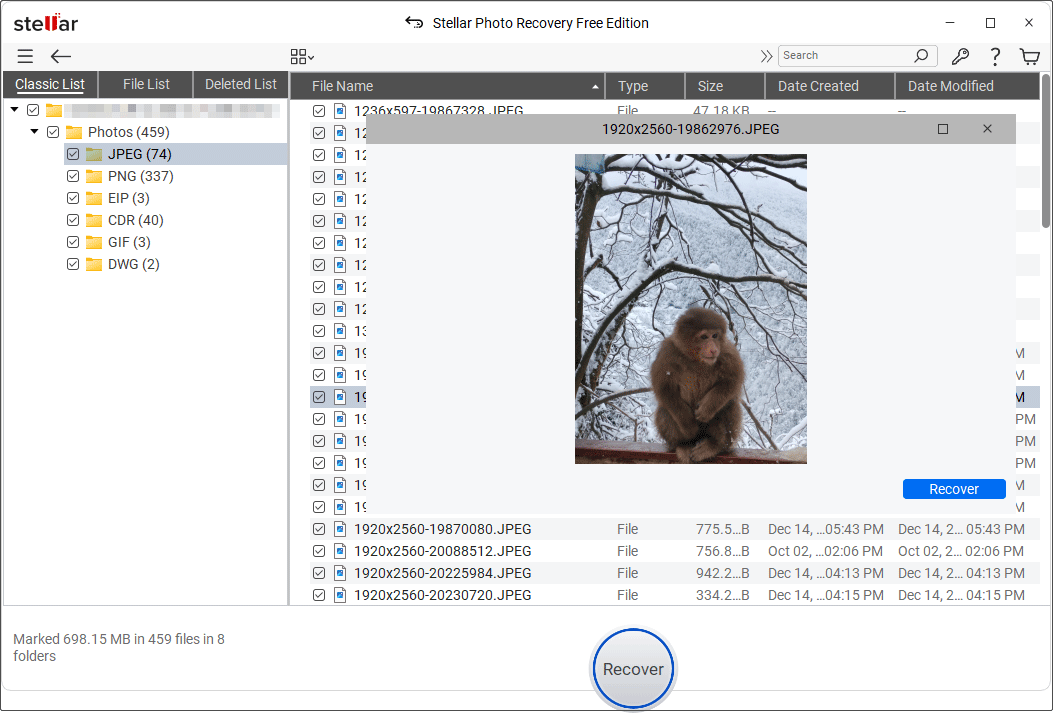
The scan completed in about 2 minutes, and the software quickly displayed the recoverable photos during scanning. After the scan, we double-clicked the recoverable files to preview them, and then saved them to another drive.
Stellar Photo Recovery Pros and Cons
| Pros | Strong compatibility with camera RAW image formats Allows you to specify file types before scanning Clean and intuitive interface Fast scanning Supports file preview |
| Cons | Free preview is unavailable for files larger than 10 MB No thumbnail preview; files must be double-clicked to preview Free edition can recover only 10 files |
3. MiniTool Photo Recovery: The Best Dedicated Tool for Photo Recovery
MiniTool Photo Recovery is a dedicated recovery tool for retrieving lost or deleted photos and videos from various storage devices. It supports a variety of image and video formats, and its simple workflow makes it suitable for users who only need to recover media files.
MiniTool Windows Photo RecoveryClick to Download100%Clean & Safe
Our Test: Recover Deleted Photos from My HDD
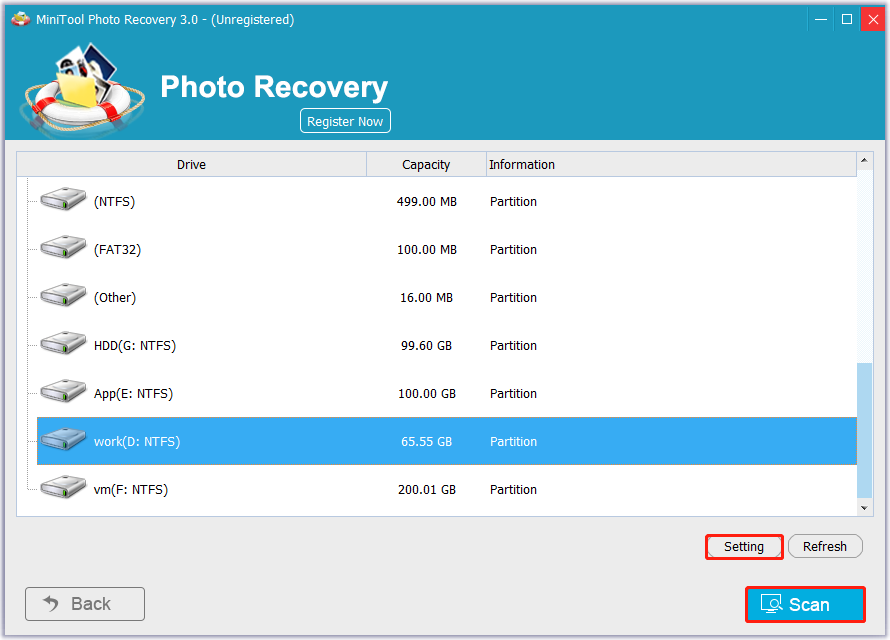
After launching the software, we clicked Start and then opened Setting. We selected Graphics & Picture as the file type to scan and confirmed the settings.
We then selected the D: partition as the scan location and started the scan. During the process, the software displayed both the elapsed time and the estimated remaining time.
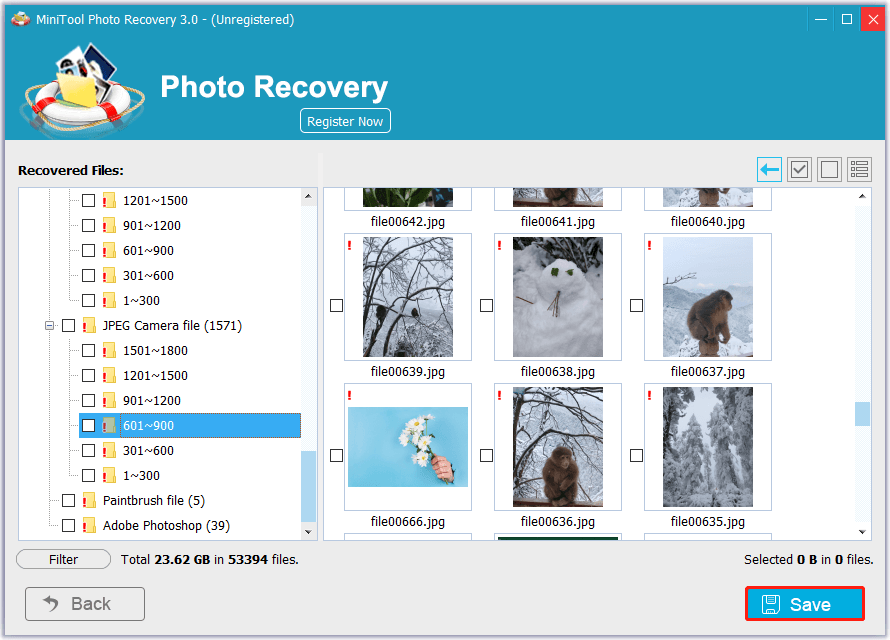
After the scan was complete, the recovered files were displayed without their original file names. We used the preview feature to identify the 10 test photos, selected the files we wanted, and saved them to another location.
MiniTool Photo Recovery Pros and Cons
| Pros | Supports a wide range of image and video formats Straightforward operations Allows you to specify file types before scanning |
| Cons | Interface looks somewhat dated Recovered files may not retain original file names |

4. EaseUS Data Recovery Wizard: The Easiest Recovery Tool for Beginners
EaseUS Data Recovery Wizard supports common storage media, file types, and file systems, making it suitable for recovering photos and other common types of data.
The software features a clear and modern interface with step-by-step guidance, which makes the recovery process easier for first-time users.
Our Test: Recover Deleted Photos from My HDD
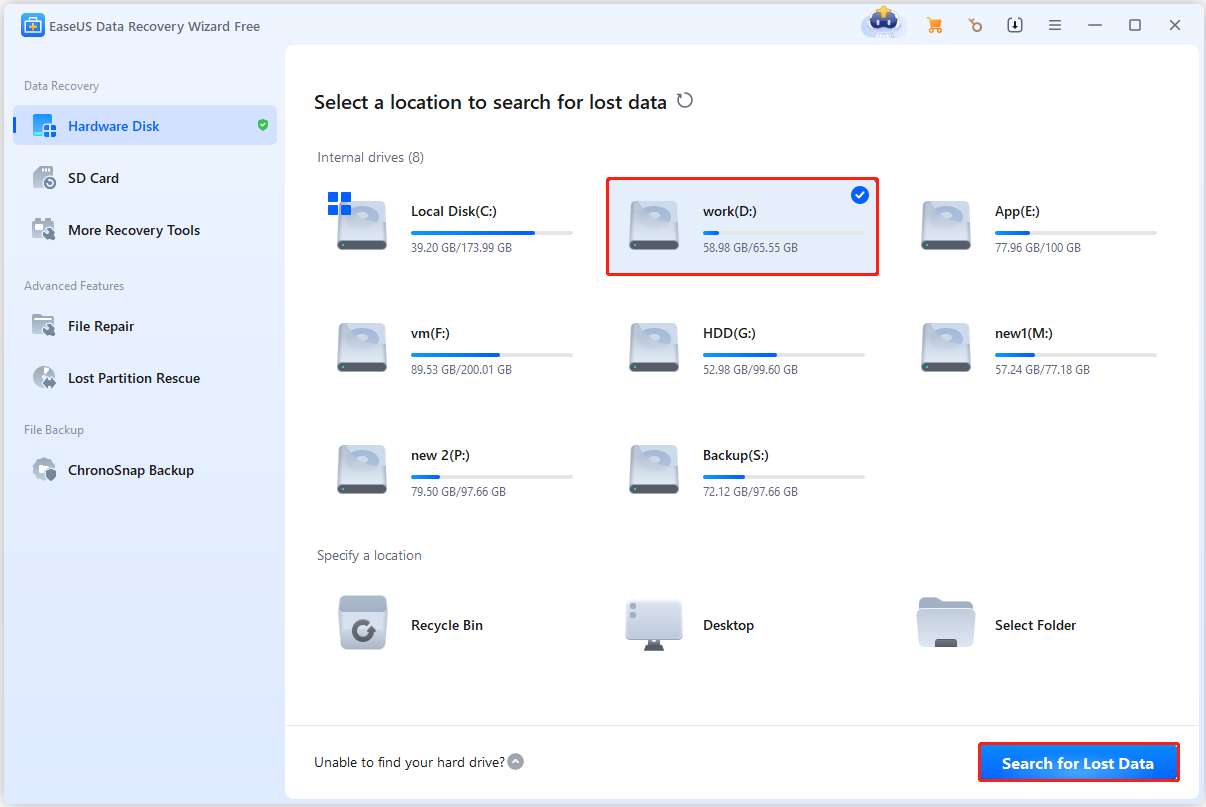
After launching the data recovery software, we selected the D: drive and started the scan. The software guided through the recovery process with clear instructions, helping complete each step easily.
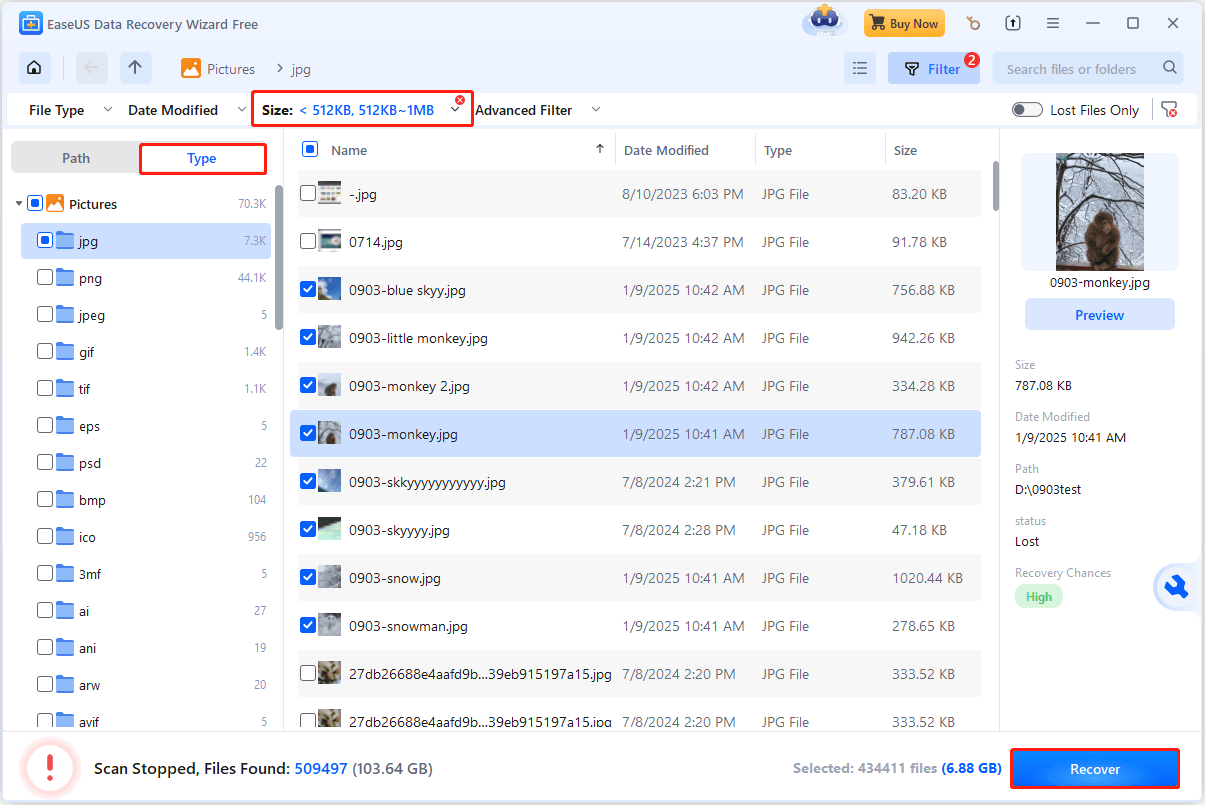
During the scan, we could already browse the found pictures under the Type category and preview the files without waiting for the scan to finish. We also used the Filter feature to limit the file size to less than 1 MB, which helped narrow down the results.
We then selected the photos we wanted and saved them. Always avoid saving new files to the affected drive to prevent data overwriting.
EaseUS Data Recovery Wizard Pros and Cons
| Pros | Broad support for storage devices, file types, and file systems Beginner-friendly and modern interface with step-by-step guidance Includes additional features such as file repair |
| Cons | Only 500 MB of free recovery is available by default Previewed files are partially obscured Some additional features, such as file repair, require a paid edition |
5. Recuva: Lightweight Free Option for Basic Recovery
Recuva is a lightweight file recovery tool designed for recovering deleted files from Windows computers, USB drives, memory cards, and other storage devices. It is suitable for users who need to restore recently deleted photos without advanced recovery requirements.
In addition to the quick scan mode, Recuva offers a Deep Scan option that searches drives more thoroughly to find traces of deleted files that may not be detected during a quick scan.
Our Test: Recover Deleted Photos from My HDD
First, we launched the software and selected Pictures as the file type to recover. We then selected the location from which to recover the lost photos and started the scan.
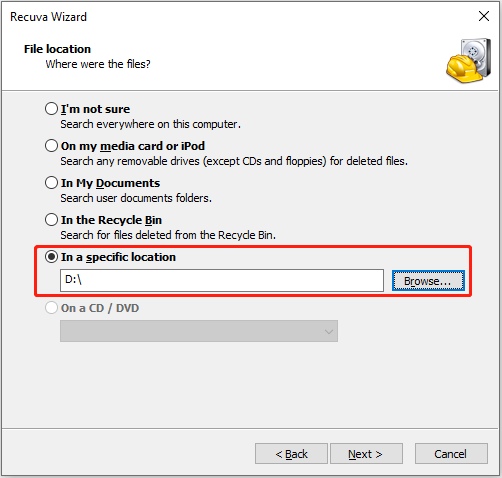
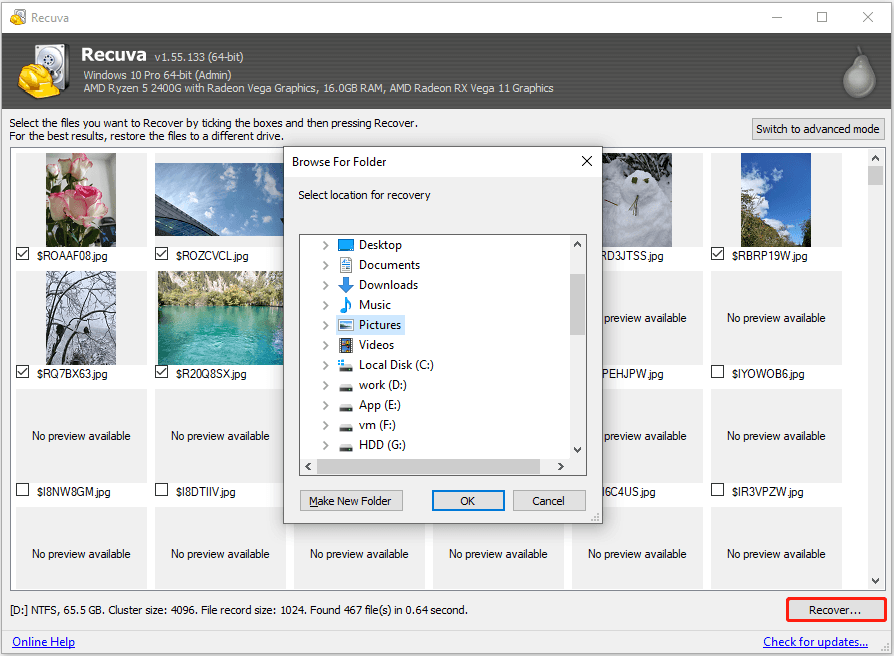
The quick scan completed almost instantly. After the scan, the recoverable photos were displayed, and we could select the files we wanted one by one and save them to the computer.
Recuva Pros and Cons
| Pros | Completely free for basic photo recovery Quick scan completes extremely fast Lightweight and requires few system resources Fast file preview |
| Cons | The interface looks outdated, and built-in features are not very intuitive Many recovered files lost their original names Cannot select multiple files at once in thumbnail view mode Not suitable for complex data recovery scenarios |
6. Wondershare Recoverit: The Best Advanced Photo Recovery Software
Wondershare Recoverit is an advanced data recovery tool designed to recover deleted or lost photos from various storage devices and complex data loss situations. It supports HDDs, SSDs, external hard drives, USB drives, and memory cards used in drones and GoPro cameras.
In addition to photo recovery, Recoverit provides extra features such as file repair for damaged photos, videos, or documents (requires a paid upgrade to save the repaired files).
Our Test: Recover Deleted Photos from My HDD
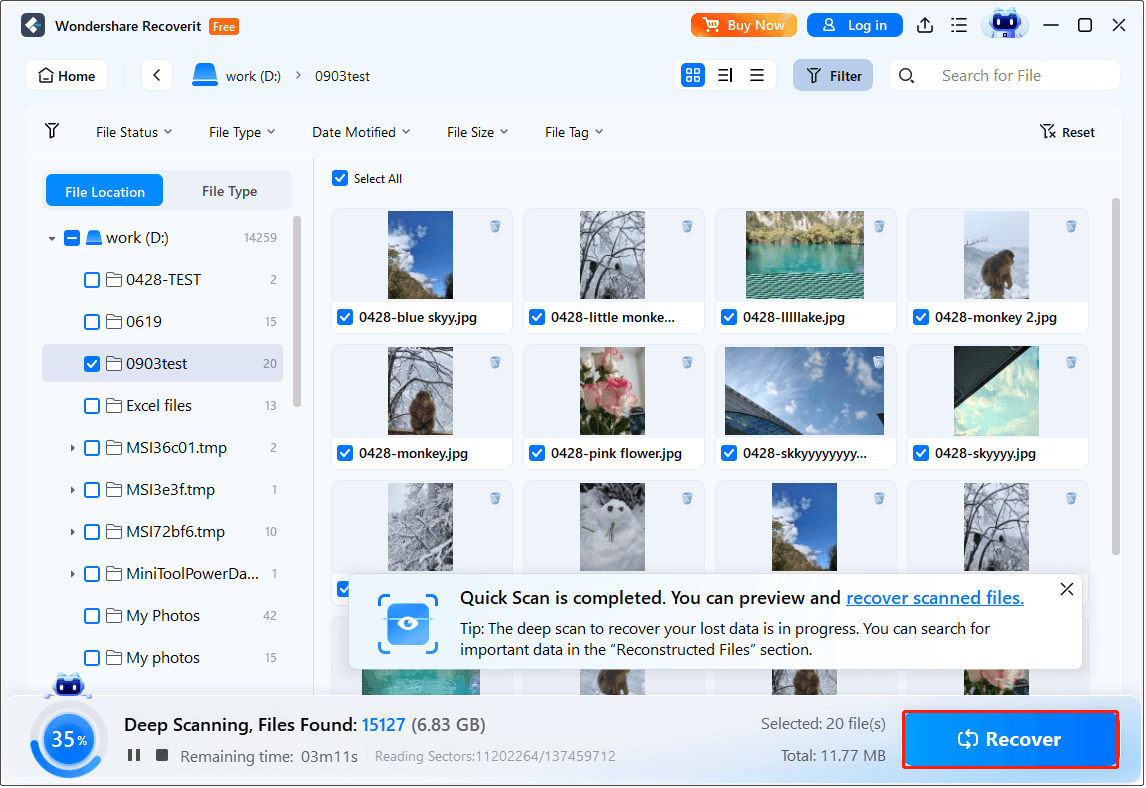
On the home page of the software, we selected the same HDD as the scan location and started the recovery process.
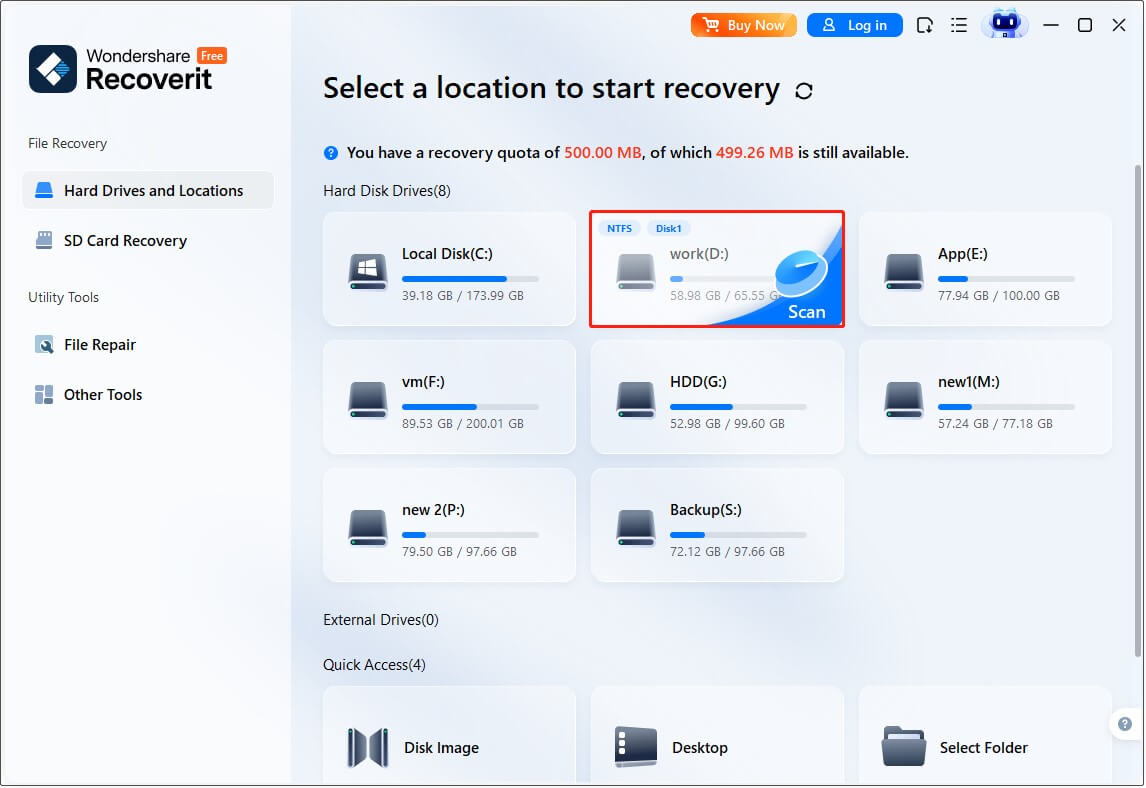
The quick scan completed almost immediately, and the software automatically continued with a deeper scan.
Since the quick scan had already found our test photos, we did not wait for the deep scan to finish. We previewed the recovered photos, selected the files we wanted, and saved them to another storage location.
Wondershare Recoverit Pros and Cons
| Pros | Supports a wide range of storage devices and data loss scenarios Allows scanning specific locations, including Desktop, Recycle Bin, and selected folders Modern and user-friendly interface Automatically continues with deep scanning after quick scanning Preserves original file names well |
| Cons | Limited to 500 MB of free recovery Deep scans can take a long time Some advanced features, such as file repair, require a paid upgrade |
7. Windows File Recovery: Free Command-Line Solution for Advanced Users
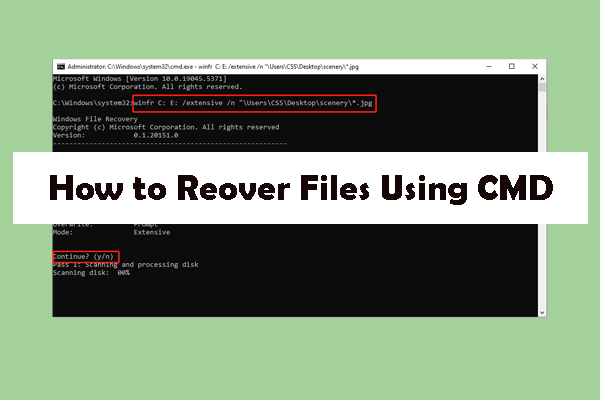
Windows File Recovery is a free command-line data recovery tool developed by Microsoft. It uses the Winfr command to recover deleted files from local storage devices, including internal drives, external drives, and USB devices.
It is a reliable data recovery choice for users who do not want to use third-party software. However, because Windows File Recovery works through Command Prompt, it requires more technical knowledge compared with traditional Windows recovery programs.
Our Test: Recover Deleted Photos from My HDD
First, we downloaded Windows File Recovery from the Microsoft Store and launched the tool. Since it uses a command-line interface, we prepared the recovery command based on its syntax:
winfr source-drive: destination-drive: [/mode] [/switches]
- source-drive: refers to the drive where the deleted files were located.
- destination-drive: represents the location where the recovered files will be saved.
- [/mode]: determines the recovery mode, including Regular and Extensive.
- [/switches]: specifies the file path, file extension, or file name.
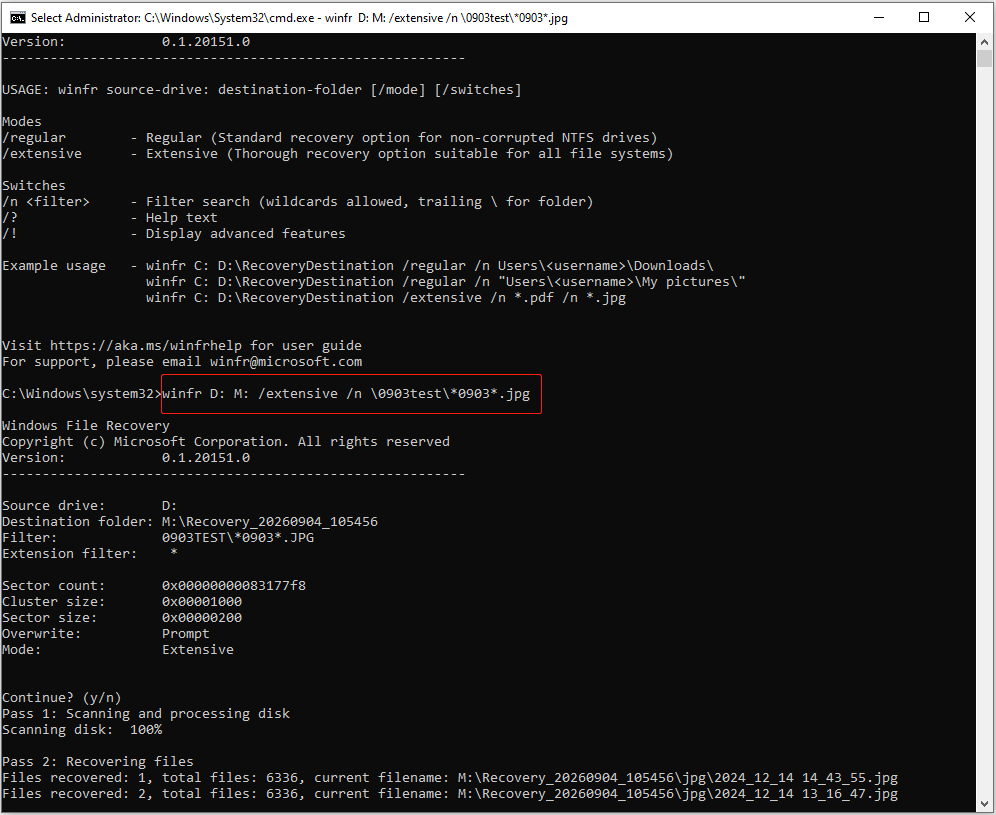
For our test, we used the Winfr command to scan the D: drive for deleted JPG photos with the keyword 0903 in their file names using the Extensive mode, and saved the recovered files to the M: drive.
winfr D: M: /extensive /n \0903test\*0903*.jpg
Learn more about the Winfr commands, recovery modes, and usage instructions in Microsoft’s official documentation: Windows File Recovery.
Windows File Recovery Pros and Cons
| Pros | Completely free Developed by Microsoft Supports different recovery modes for different scenarios Works with internal drives, external drives, and USB devices |
| Cons | Command-line interface is not beginner-friendly Cannot preview files before recovery Requires complex recovery commands and parameters May recover a large number of unrelated files |
How to Choose the Best Photo Recovery Software
Choosing the right photo recovery software can make the recovery process easier and more effective. Consider the following factors before selecting a recovery tool to improve the chances of successful recovery:
1. Consider Recovery Capability
Different photo recovery tools have different strengths depending on the recovery scenario. Before choosing software, make sure it supports your storage device, file types, and file systems.
- Storage devices: Make sure the software supports the device where your photos were lost, such as HDDs, SSDs, USB drives, or memory cards.
- File formats: If you recover photos from professional cameras, choose software that supports RAW formats.
- File systems: Check whether the tool supports your drive’s file system, such as NTFS, FAT32, or exFAT.
- Recovery scenarios: Some tools are designed for basic recovery needs, while others can handle formatted drives, corrupted partitions, or more complex data loss situations.
2. Consider Ease of Use
A good recovery tool should find and restore lost photos easily. For beginners, tools with the following features are better:
- Simple and clear interface
- Step-by-step recovery guidance
- Quick scanning speed
- File preview before recovery
- Search and filter options to narrow down scan results
- Ability to scan specific folders or locations
- Different scan modes for different situations
3. Check Free Recovery Limits
Many photo recovery tools provide free editions with data recovery limitations. Before choosing a tool, check how much data can be recovered for free and the cost of upgrading to a paid edition.
4. Consider Technical Support and Updates
Reliable technical support can be important, especially if you are new to data recovery tools. Check whether the software provides official documentation, user guides, and customer support channels.
In addition, check whether the software is regularly updated and compatible with your Windows version, as this can affect stability and recovery performance.
Conclusion
Photo recovery software can help restore deleted or lost images that have not been overwritten by new data. This guide introduced several reliable recovery tools and explained how to get back deleted photos.
The best choice depends on your recovery needs. For most Windows users, MiniTool Power Data Recovery is a strong overall choice. If you need to recover photos from cameras, you may prefer Stellar Photo Recovery or MiniTool Photo Recovery. Free options like Recuva are suitable for users with basic recovery needs.
If you have any questions while using MiniTool products, please send an email to the tech support team at [email protected].
Free Photo Recovery Software FAQ
For example, Recuva is best for users looking for a free recovery solution; MiniTool Power Data Recovery is suitable for recovering recently deleted photos with an easy-to-use interface; Windows File Recovery is best for users who prefer an official recovery tool.
About The Author

Position: Columnist
Shirley holds a bachelor’s degree in English and has been an editor at the MiniTool Team for many years. She specializes in IT-related content, with a focus on data recovery, file backup, disk management, and other technical topics. She is committed to delivering clear, accurate, and practical solutions to help users resolve common computer issues.
User Comments :