

To perform Panasonic camcorder recovery, start with MiniTool Power Data Recovery or check your backups. You can also try Panasonic SD Card File Recovery Software or contact professional data recovery services for help. To protect your Panasonic camcorder files, learn about common file loss causes and preventive measures.
Panasonic camcorder videos can become lost or inaccessible due to various unexpected situations, making it difficult to access important recordings.
Common situations that may lead to Panasonic camcorder video loss include:
- Accidentally deleting videos from the SD card
- Formatting the SD card in the camcorder
- SD card errors or file system corruption
- Interruptions while recording, such as battery failure or improper removal
- The camcorder or computer failing to recognize the memory card
Is It Possible to Recover Videos from a Panasonic Camcorder SD Card
It is possible to recover videos from a Panasonic camcorder SD card in many cases.
When videos are deleted, or the SD card is formatted, the files are usually not immediately erased. Instead, the space they occupy is marked as available for new data. As long as new recordings or files do not overwrite that space, professional data recovery software may be able to scan the card and recover the lost videos.
The same applies to other situations, such as SD card corruption or inaccessible videos. However, if the card continues to be used after data loss, the chance of successful recovery may decrease significantly.
Here are a few tips to help improve data recovery success rate after your Panasonic SD card has been formatted.
- Immediately stop using the device: Do not continue taking photos or saving new files to avoid overwriting lost data.
- Do not reformat: Repeated formatting will further damage the data structure.
- Avoid running disk checks: Operations such as CHKDSK may overwrite metadata, reducing the success rate of recovery.
- Protect the card safely: Remove the SD card and store it in a safe environment to avoid physical damage.
- Start recovery as soon as possible: The earlier you start, the higher the success rate of recovery.
Following these tips and taking timely action can increase the chances of recovering videos from Panasonic camcorders.
The following section will introduce several effective recovery methods to help you retrieve your lost video files step by step.
Approach 1: Utilize MiniTool Power Data Recovery
Professional data recovery software can quickly and safely retrieve original videos without writing new data. This is the most direct and preferred solution. Which software should you choose?
MiniTool Power Data Recovery is a reliable tool to recover videos from Panasonic camcorder SD cards.
This software performs well in recovering files after card formatting and can also handle accidental deletion, partition loss, and other data loss scenarios.
It supports recovering a variety of file types, including videos, pictures, audio files, and more.
Besides Panasonic camcorders, it can also recover video files from Sony, Canon, GoPro, and other devices with an SD card.
It uses read-only scanning, ensuring no writing or modification to the original data, preventing secondary damage.
This free data recovery software gives you 1 GB of free recovery space. Furthermore, its simple and intuitive interface makes recovery easy.
Click the green button to download and install this software. After installation, remove the SD card from the Panasonic camera and connect it to the computer using a card reader.
MiniTool Power Data Recovery FreeClick to Download100%Clean & Safe
Now, follow the steps to start Panasonic camcorder recovery.
Step 1: Launch the software and scan the SD card
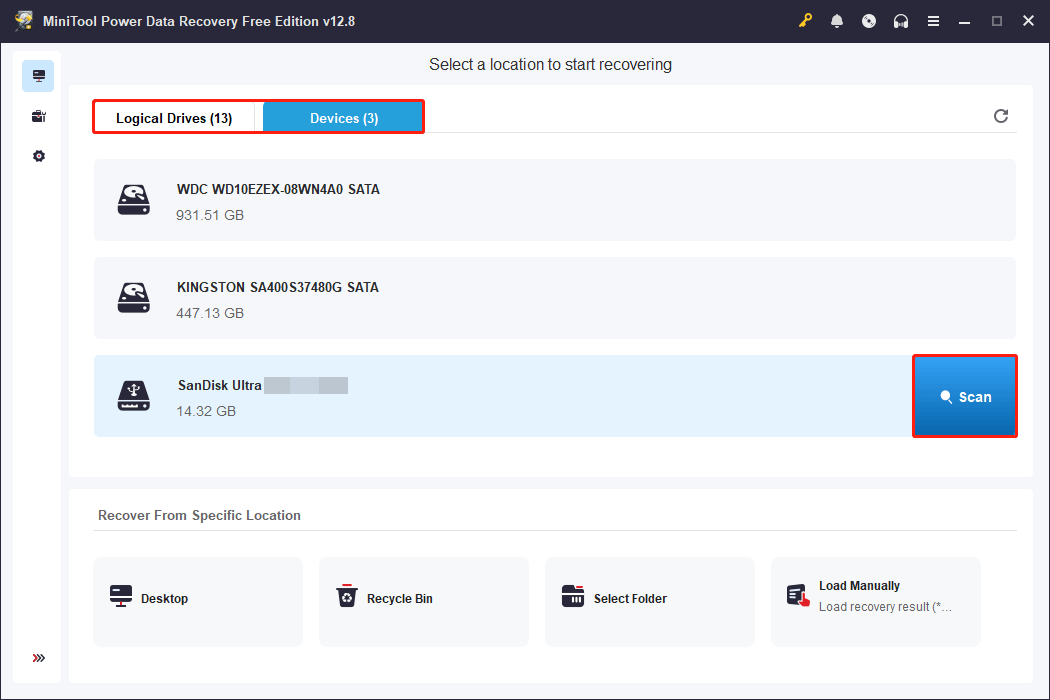
Open MiniTool Power Data Recovery. In the main interface, you can choose the scan location from two sections:
- Logical Drives: It displays all the partitions, including existing partitions, lost partitions, and unallocated space. If you want to recover data from a specific partition on your SD card, select it here.
- Devices: It lists all the disks that are connected to your computer. If the SD card has been formatted, scan the entire device in this section.
Select the SD card and click Scan. The software will start scanning for existing and lost files.
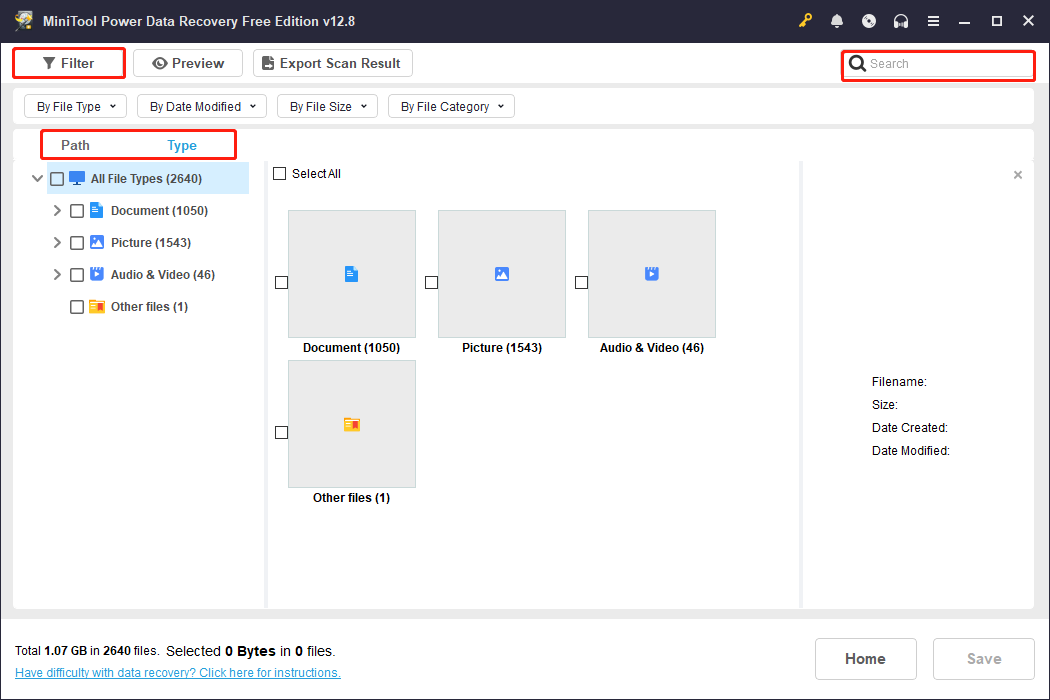
Step 2: Find the target files using Path, Type, Filter, and Search
The scanning process may take some time, and you need to wait for it to complete. When it ends, use Path, Type, Filter, and Search to locate the target files.
- Path: It presents the scan results according to the original folder hierarchy. If data was previously located in DCIM or a specific subfolder, you can quickly find the target file by expanding the path tree.
- Type: It categorizes found files by type, such as documents, pictures, videos, and audios. Expand the corresponding file type and data format to find the target file.
- Filter: It helps you to filter files by file type, modification date, file size, and file category to further narrow down the search.
- Search: It allows you to enter the filename to search for a file directly. Even if you only remember part of the filename, you can quickly locate all relevant files.
Step 3: Recover the needed files to another safe location
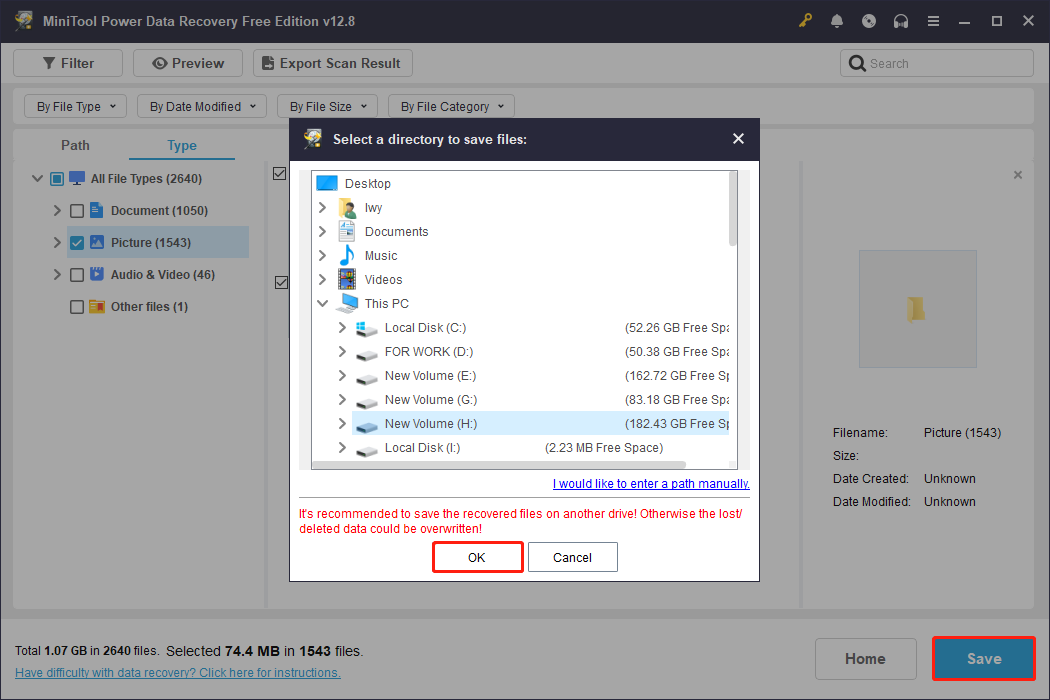
Select the files you want to recover and click Save. In the new window, select a safe path to store them and click OK to start recovery.
When the Recovery Completed window shows, click the View Recovered button to confirm that the files are intact and usable.
Approach 2: Restore from Your Backups
If you’ve already made a backup, you can directly restore the original video file from the backup. This is the safest method and doesn’t require installing any additional software.
Locate the backup files, such as on your computer’s hard drive, external hard drive, or cloud storage (like OneDrive or Google Drive).
Once you make sure the backup includes the videos you need, simply copy them back to your SD card.
If you don’t have a backup, proceed with the following methods to recover lost videos.
Approach 3: Use Panasonic Camcorder Recovery Tool
For those who rely on Panasonic camcorders for recording, using the official tool is one of the most reliable methods to retrieve videos.
This dedicated tool offers great compatibility and a high success rate when handling common Panasonic video formats such as AVCHD and MP4.
Developed by Panasonic, the software guarantees security and stability. It will not cause secondary damage to the original SD card and files.
In addition, it supports cross-platform operation, including Windows and Mac.
However, recordings deleted using the “CARD FORMAT” function on an AVCCAM device cannot be recovered with this software, except in the following two cases:
- Case 1. Recordings made using the DV mode of the AG-HMC80 series.
- Case 2. Recordings on SDXC memory cards formatted using AG-AF100 series AVCCAM cameras.
If you meet the conditions, then this tool is worth trying. Visit the official Panasonic SD Card File Recovery Software page to download and install the software.
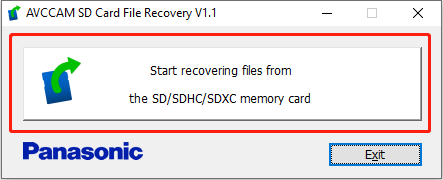
Step 1: Run this recovery software, and then click “Start recovering files from the SD/SDHC/SDXC memory card” to continue.
Step 2: Select the SD card used in your Panasonic camcorder, then click Next to scan for data.
Step 3: After the scan completes, locate the target files.
Step 4: Select the files you want, click Recover, and choose a save location to store them.
If you do not meet the criteria for recovery, then try the last method.
Approach 4: Seek Professional Data Recovery Services
If you fail to recover data from a Panasonic SD card after multiple attempts, seeking professional services is often the best option.
Professional agencies possess dedicated hardware-level recovery equipment, dust-free environments, and reconstruction technology specific to camera video formats.
They can directly extract raw data from damaged storage chips. Furthermore, they can also perform deep reconstruction of fragmented AVCHD, MP4, and MTS files, maximizing the recovery of playable video content.
While professional services are more expensive, they represent the last line of defense for ensuring the safe recovery of valuable video content.
After successfully recovering the Panasonic files, check the last two sections, which outline common causes of file loss and preventative measures.
Other Common Causes for Panasonic Camcorder File Loss
Besides formatting, Panasonic camcorders can lose files during daily use due to a variety of factors.
Understanding these potential risks helps in better identifying the source of the problem and taking the appropriate measures when necessary.
Below are other common reasons for Panasonic camcorder file loss.
- Accidental deletion: Video files are accidentally deleted while cleaning up footage on a camcorder or computer. This is especially common during batch deletion or quick browsing.
- SD card file system corruption: Sudden power outages, improper card removal, or shutdowns during recording can damage the file system structure, making the video directory unreadable.
- Hardware issues: Corrupt memory cards, incompatible SD card speed, or overheating may lead to file loss.
- Recording interruption leading to incorrect file writing: Battery depletion, camcorder crashes, or insufficient storage space can prevent video files from being properly encapsulated. It results in corrupted or unplayable MTS/MP4 files.
- SD card physical damage or aging: Prolonged use can increase the number of bad blocks and poor contact, leading to file read failures or partial data loss.
- Transmission interruption or failure: When transmitting video via a card reader or data cable, an unstable connection or interruption may result in incomplete or lost files.
- Camera system failure: Firmware errors, system crashes, or abnormal storage management may lead to corrupted video directories or unrecognizable files.
Recommendations for Preventing Panasonic Data Loss
For valuable videos, preventing data loss is more critical than subsequent recovery. This section will discuss how to effectively prevent data loss on Panasonic devices.
- Avoid power outages or shutdowns during recording. Ensure the battery is fully charged to prevent sudden power outages during data writing, which could corrupt files.
- Eject the SD card correctly. Use the Safe Removal function on your computer to avoid file system corruption caused by forcibly removing the card.
- Use high-quality, compatible SD cards. Choose reliable brands and high-speed cards (Class 10 or UHS-I/UHS-II) to reduce the risk of bad blocks and write failures.
- Keep the camera firmware updated. Firmware updates can fix system errors and improve file writing stability.
- Avoid recording when the card capacity is close to full. Insufficient storage space may cause files to be improperly packaged, resulting in corrupted files.
- Avoid frequently switching the same SD card. Different devices use different file system management methods, and frequent switching can lead to a chaotic directory structure.
- Back up your SD card regularly. After shooting, promptly copy videos to your computer, external hard drive, or cloud storage. This prevents irreversible loss due to accidental deletion or card damage.
To Conclude
With timely and correct recovery measures, there is a chance to recover video recordings from Panasonic camcorders. The recovery solutions involve MiniTool Power Data Recovery, Panasonic SD Card File Recovery Software, and professional data recovery services.
Finally, understanding common causes of video loss and taking corresponding preventative measures enhances video protection.
If you have any questions about the MiniTool product, send an email to us at [email protected].
Panasonic Camcorder Recovery FAQ
When choosing a tool, consider factors such as supported video formats, preview options, recovery limits, and ease of use. MiniTool Power Data Recovery allows you to scan SD cards and recover 1 GB of videos for free.
About The Author

Position: Columnist
Shirley holds a bachelor’s degree in English and has been an editor at the MiniTool Team for many years. She specializes in IT-related content, with a focus on data recovery, file backup, disk management, and other technical topics. She is committed to delivering clear, accurate, and practical solutions to help users resolve common computer issues.
User Comments :