


AppData Folder Location Explained: How to Find and Access It
Learn how to find AppData folder in Windows 11 and Windows 10, access hidden files, understand its role, and recover missing AppData data.
By Charlotte / Published
This page contains comprehensive Windows data recovery solutions for different Windows data loss situations. All you need is the best free data recovery software: MiniTool Power Data Recovery. This file recovery tool can recover all kinds of missing files including pictures, videos, audio, documents, and more.
From recovering permanently deleted files on Windows to rescuing data from unbootable PCs or laptops, and from recovering data after a factory reset to retrieving files deleted by viruses, the guides on this page can quickly and effectively help you get your data back. Check out this page to discover more useful file recovery methods tailored to the data loss situations you are currently facing.
Learn how to find AppData folder in Windows 11 and Windows 10, access hidden files, understand its role, and recover missing AppData data.

Read this step-by-step guide to learn how to recover deleted emails from Gmail, even if they have been permanently removed from the Trash.

Learn why your HP laptop won’t turn on and follow step-by-step solutions to resolve black screen issues, power problems, and startup failures.
This guide explains how to recover deleted Google Drive files through 5 effective methods, from Trash recovery to advanced recovery options.
This tutorial outlines the causes of files missing after a Windows reboot and recovery methods for finding desktop files and documents.
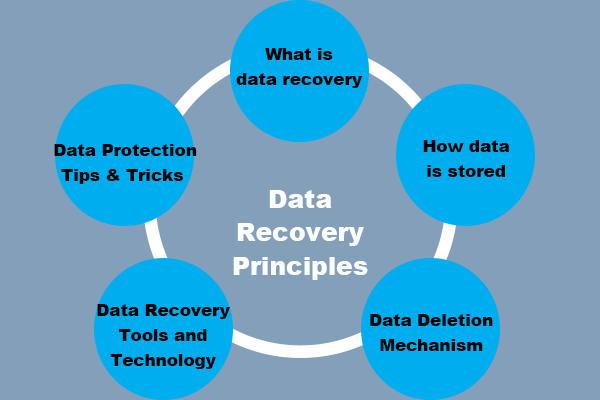
Learn how data is stored in storage devices, what happens when files are deleted, data recovery principles, and how to recover data in Windows.
This guide explains why your deleted file is not in the Recycle Bin and how to restore permanently deleted files with effective solutions.

This post discusses when InDesign files can be recovered, how to recover them, and how to prevent data loss.
This post addresses why the Surface Pro may not turn on, how to identify the problem, recover data, fix the issue, and prevent it in the future.
This guide explains how to recover files lost by Ctrl + Z with 5 methods, covering pressing Ctrl + Y, checking the Recycle Bin, and using a recovery tool.